
Staff, roles and organisation
Manage staff accounts, permissions, roles, departments, profiles and team access.
Detailed module walkthrough
Watch the complete walkthrough
Follow live clicks through staff profiles, reusable roles, individual permissions, departments, project membership, task assignment, account status, internal notes and timesheets. Review working hours and private authentication setup.
Watch this walkthrough on YouTube
Use the YouTube player for this complete walkthrough. Loading the player connects to YouTube; the video remains paused until you press Play. The chapter links, transcript and downloadable version above remain available.
Browse 19 feature chapters
- Staff module overview and team register
- Create a reusable staff role
- Reopen and verify saved role permissions
- Review staff timesheets and date filters
- Prepare a staff profile and department
- Save the reviewed training account
- Verify the saved staff profile
- Enable and verify an individual permission
- Restore the temporary permission off
- Add and verify a project member
- Assign and verify a task colleague
- Deactivate, reactivate and leave inactive
- Review profiles, reports and linked projects
- Draft an internal staff note
- Save and verify the internal note
- Edit, verify and remove the training note
- Review staff and company working hours
- Review private password and two-factor setup
- Recap and verify final account status
Read the full transcript
Britixo CRM Staff, Roles & Organisation | Complete Module Walkthrough
00:00 Bring team profiles, access and responsibilities together The Staff module brings team profiles, roles, permissions and department responsibilities together. Use it to add a colleague, review access, maintain profile details and check related work and timesheets. We will follow the native controls using fictional training records, with private authentication steps kept outside the public recording. Start with the existing staff register and verify the intended person before making changes.
Choose New Staff Member and review Profile and Permissions separately. Check the name, email, department, welcome-email choice and intended role. Administrator is a separate access decision. Complete password or verification steps privately when required. We are reviewing the blank form first; no account or access change is submitted here.
00:56 Create a clear reusable role for the responsibility Open Roles and review the existing names and user totals before adding another entry. Choose New Role and enter a clear name. This separate training role leaves the existing Employee role intact. Review the permission grid before saving; selecting a role and assigning a person are separate decisions.
For Projects, View Own is deliberately unavailable. Read the native help: staff without global viewing see projects where they are members. Keep View Global and the creation, editing and deletion capabilities clear for this example. We will add the fictional reviewer to one intended training project separately, then inspect the saved membership.
Tasks explains access through assignment, following and applicable project settings. Public tasks and wider settings can also affect visibility. Review those controls as well as the role. This example selects no extra capabilities; the Edit Own Timesheets option will be demonstrated separately and returned to its original off state.
Review the role name and the complete permission choice, then select Save once. Return to the role register and reopen the same named role. Check that the name persists and no extra capability is selected. The role is now available to assign deliberately; saving the role alone has not created or invited a colleague.
02:43 Reopen the saved role and verify its actual permissions The named training role is now in the register. Open its name to inspect the saved role. Verify the name and review the permission grid again, including the task time-entry controls. No extra capability is selected for this example. Saving and reopening confirms the stored configuration before the role is assigned to a colleague.
03:11 Review logged work without changing staff access Timesheets brings logged task time together for review. Open Timesheets overview from the native menu. Check the date range and staff filter before interpreting a total. These are fictional training entries; the report does not itself confirm payroll, attendance, customer billing or payment. We will change the display filters without editing any saved time or access.
Choose This Month Logged Time and select the intended staff member. Apply the filters, then review the staff name, task, start and end times, note, related record and duration columns together. An empty result means no entries match the current filters. It is not proof that no time exists elsewhere.
Review My Timesheets and the wider reporting view separately. Wider staff reporting depends on the signed-in user and their permissions. Use Customer and Project when you need a more specific context, and check the filters again before export. This demonstration has changed only the reporting view; the saved entries and existing staff permissions are unchanged.
04:35 Prepare the intended colleague’s staff profile Open Staff and check the existing register before choosing New Staff Member. Enter the intended first name, last name and email. This example uses fictional Emily Foster and a reserved training address. Keep Administrator clear. Review the identity and responsibility before any invitation or access change, and preserve the existing owner account.
Set the demonstration hourly rate to zero and choose the intended Customer care desk department. Review the language, direction, signature and optional profile details against the colleague’s actual needs. Turn Send welcome email off for this fictional account. Department membership, the role and an invitation are separate settings; check each deliberately.
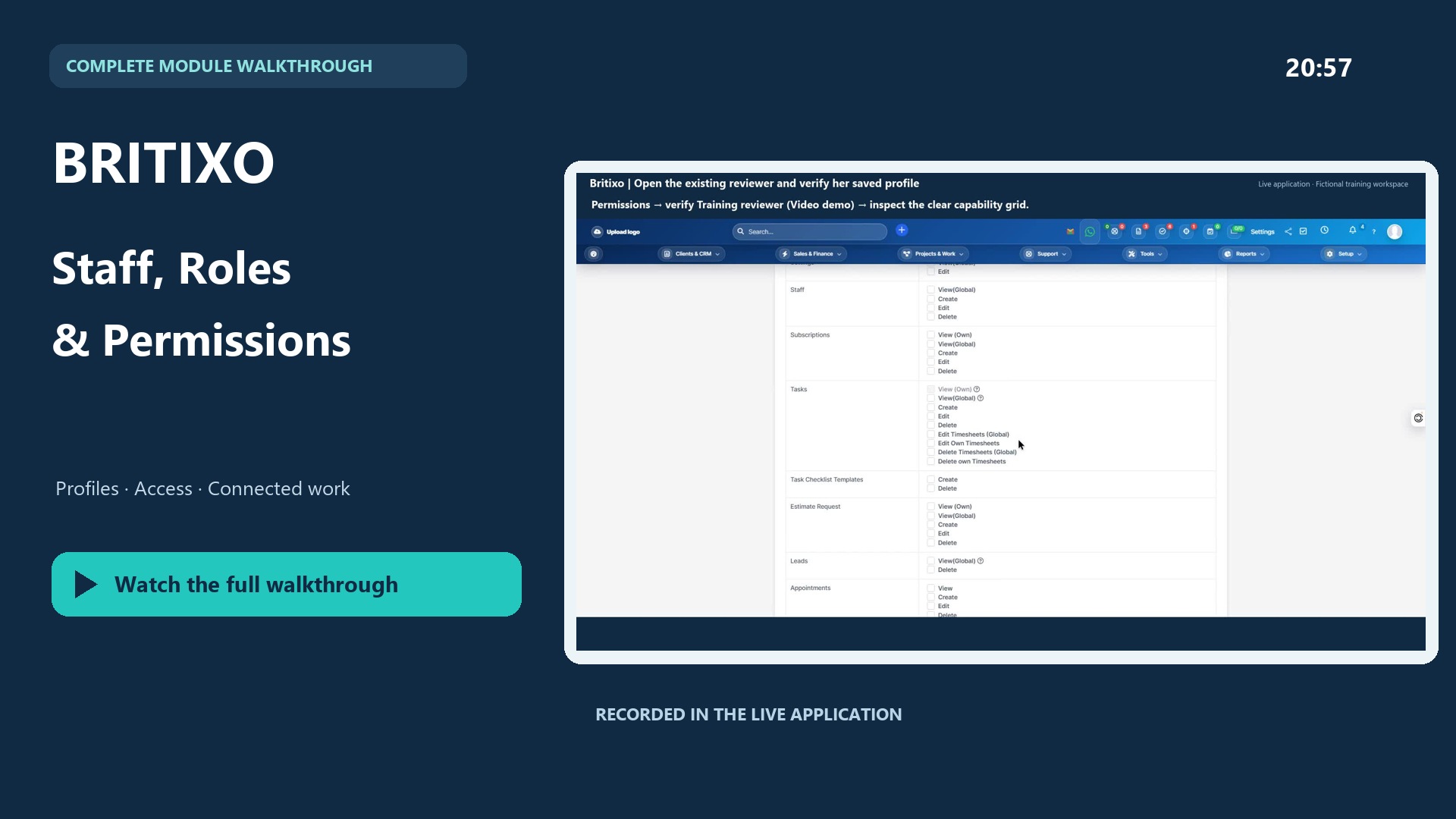
Open Permissions and choose Training reviewer, Video demo. Verify that this is the separate role we saved and that Administrator remains off. Review the permission grid, including project and task access rules. This example grants no extra capabilities through the role. The individual time-entry permission will be shown later and restored off.
Before saving, complete the approved private sign-in setup outside the recording. Keep passwords and verification details out of shared footage. We will return to review the same fictional profile, keep the welcome email off, save once and reopen the stored account. A prepared form is separate from a saved staff member.
06:39 Review the fictional profile before saving Private sign-in setup is complete outside the footage. Review Emily’s name, fictional training email, zero demonstration hourly rate and intended department. Administrator and Send welcome email remain off. Check the reviewed role and permissions as separate settings, then save the account once. This creates only the intended training staff member.
Choose Save once to create the reviewed training account. Next, reopen Emily’s entry from the register and verify the stored profile and permissions.
07:16 Open the existing reviewer and verify her saved profile Emily now appears in the Staff register. Open the existing entry and review her saved first name, last name, fictional training email, demonstration hourly rate and department. Administrator remains off. Inspect the saved account instead of repeating the creation action; this confirms the identity and profile settings on the actual stored record.
Open Permissions on Emily’s saved account. Confirm Training reviewer, Video demo, and inspect the capability grid. No extra capability is selected here. We will demonstrate the separately agreed Edit Own Timesheets setting, verify it after saving and restore it off. The existing owner and Employee role remain separate from this training account.
08:09 Review one individual capability before saving Individual staff settings let an administrator review a specific responsibility for one colleague. In Emily’s Permissions tab, find Tasks and Edit Own Timesheets. This capability concerns her own time entries; global time editing and deletion are separate controls. For this agreed training example, select only Edit Own Timesheets, then review the rest of the grid before saving.
Choose Save once, then reopen Permissions on the same saved staff account. Confirm that Edit Own Timesheets persists and the global time-entry controls remain clear. Administrator is still off and the Training reviewer role remains selected. This demonstrates the stored individual setting; it does not change the existing owner or another role.
09:04 Restore the temporary individual capability off The temporary training setting has been verified. Return Edit Own Timesheets to off before completing this example. Review the individual account and role together, and leave global editing and deletion clear. Removing the capability is a separate saved change; verify the stored result after saving rather than relying only on the checkbox in the form.
Choose Save once and reopen Permissions on Emily’s saved account. Confirm that Edit Own Timesheets is now off and no extra capability remains selected. Administrator stays off and the reviewed training role is unchanged. The temporary permission demonstration is complete; the staff profile and department remain available for the next membership review.
09:59 Review the intended project before adding a member Project membership is a separate setting from the staff role. Open the fictional Willowbrook estimate delivery project and verify its customer and project identity. Use More, then Edit Project, to review Members. Keep the existing members and all the project’s dates, billing and customer settings intact while adding the intended colleague.
Open Members and select Emily Foster alongside James Bennett. Check both names before saving. Membership, the role and wider project settings work together to determine access; adding a member is not a grant of every global permission. Leave Send project created email off for this training change and review the other project settings without altering them.
Choose Save once, then reopen the same project’s edit screen. Verify that Emily and the original members are still selected. Check that the customer, dates, billing and other settings remain as reviewed. This confirms the saved membership; evaluate the colleague’s wider workspace permissions separately when reviewing the access they need.
11:19 Review the intended task and its existing responsibility Open Tasks and select Review project delivery guidance, Training. Check the task title, its linked support request and the current assignees. This task belongs to the support request; assigning a colleague does not move it into the project reviewed earlier. Keep the existing owner, private state, non-billable setting, description and supporting file intact.
Use Assign task to and select Emily Foster. This control saves the assignment immediately. Review Emily’s assignee avatar alongside James Bennett and hover to verify the name. Do not use the removal control on an existing colleague. Task assignment is a separate responsibility from the staff role and project membership.
Close the task and open the same named entry again. Confirm that Emily and James remain assigned after reopening. Review the linked support request, status, private and non-billable settings, description and supporting file once more. This confirms the stored assignment while preserving the task’s existing purpose and history.
12:43 Review the exact staff account and its stored inactive state In Staff, identify the intended colleague by name, email and role before using Active. Our fictional reviewer is currently inactive. Refresh the register and check that the off state persists while the existing owner remains active. Deactivation is separate from deleting the staff record; review responsibility for open work and retained history as part of your offboarding process.
When an account should return to service, review the person, role and current responsibilities first. Turn Emily’s Active switch on for this agreed demonstration. Refresh the register and verify the stored active state. Reactivation is an access decision; it does not itself review or change every role, project membership or assigned task.
Turn Emily’s Active switch off to finish this training example. Refresh the register and confirm that her entry remains with the reviewed role while its switch is off. The existing owner stays active, and the individual time-entry capability was already restored off. The authorised administrator can still review the saved profile and fictional work relationships.
14:07 Review the colleague’s connected staff record Open Emily’s existing staff entry. The record brings her profile, permissions, notes, time summaries and linked projects into one place. Review the name and department, and distinguish the selected colleague’s logged-time summary from a working-hours schedule. Emily has no recorded time in this training example; the administrator can still review her record while the account is inactive.
Choose Timesheets and Reports. This tab keeps the selected staff member’s context and offers period choices, an Apply control, a detailed table and export tools. Read the task, start and end times, related work, staff hourly rate and time columns together. Emily’s table is empty here. Earlier, we used the wider staff timesheet report to review the separate fictional entry for James.
Choose Projects to review Emily’s saved membership. The Willowbrook estimate delivery project appears with its dates and status, and its link opens the detailed project record. Return to Notes for internal staff context. Review the author and added date alongside any note, and keep staff notes separate from a customer conversation or a task’s operational history.
15:38 Add clear internal context to the intended staff record In Emily’s Notes tab, choose New Note. Enter concise internal context that another authorised colleague can understand. This example describes fictional reviewer responsibilities and carries a clear training reference. Keep passwords, private access details and unnecessary personal information out of the note. Review the selected staff record and wording before saving.
16:10 Save the reviewed note and verify its author and date Review the intended staff record and the completed note, then choose Save once. Find the training reference in the Notes register and check the stored wording, author and added date. The note belongs to Emily’s staff record. Inspect that existing entry before submitting anything again, so the same internal context is not accidentally duplicated.
16:37 Revise the intended internal note and review its wording Find the exact training note in Emily’s register and use its edit control. Review the stored wording before changing it. Update the responsibility so the expected follow-up is clear, then choose Update note once. Keep this internal staff context separate from task progress or a customer response, and check the saved record afterwards.
Refresh the staff record and return to Notes. Find the same training reference, reopen its editor and verify that the revised wording persists. Review the author and added date alongside the content. Cancel the editor after checking when no further change is needed; opening a note for review does not require submitting another update.
Before removing a note, identify its exact wording and decide whether it must be retained for the organisation’s records. This example removes only the unused fictional note created for the walkthrough. Use that entry’s Delete control and confirm once. Refresh Notes afterwards and verify that the training entry is gone while Emily’s staff record remains available.
18:00 Review booking availability separately from recorded time Open Staff Working Hours. These scheduling controls belong to the appointments workflow and describe availability when a staff member is selected as a provider. Check the selected colleague before reviewing the week. The current example is James Bennett. A working-hours schedule is different from a timesheet: it describes availability rather than time already recorded against work.
Review each day’s Available switch, Start Time, End Time and Use Company Schedule choice. The screen explains that time slots use fifteen-minute intervals. Open Company Schedule to review the organisation’s defaults, then return to the selected staff schedule. This is a read-only setup review; no availability, company hours or saved provider setting is changed in this walkthrough.
18:58 Open the account owner’s self-service profile A colleague’s own sign-in settings are separate from an administrator’s staff record. Open the profile menu and choose the personal profile. This example reviews James’s self-service screen. It includes profile details, a password-change section and the available two-factor choices. Password entry and any verification material are completed privately; this walkthrough does not submit an authentication change.
The screen offers email two-factor authentication and Google Authenticator alongside Disabled. Review the permitted method for your own account and complete its enrolment, recovery information and verification privately. Save and test the intended sign-in flow only after that private setup is ready. Here, we review the controls without selecting a method or saving; the existing authentication setting remains unchanged.
19:57 Bring profiles, roles and work responsibility together The Staff module connects colleague profiles, roles, individual capabilities, departments, notes, reporting and linked work. We created the fictional reviewer, verified the saved role and profile, reviewed responsibilities and demonstrated the agreed access changes. Emily finishes inactive, the temporary time-entry capability is off, and the existing owner remains active. Booking availability and private authentication setup are separate reviews. Use the Staff, Roles and Organisation help page for the written guides, chapters and related workflows. Review the intended person, make one deliberate change and verify the stored result.
Recorded in the live Britixo application using a disposable workspace and fictional training records. Available actions depend on your role, enabled modules and authorised integrations.
Create a staff account
Create a staff accountAdd a team member with contact details, role, departments and access status.
Open guide →GuideEdit staff profile and status
Edit staff profile and statusUpdate profile information, language, signature and active status.
Open guide →GuideCreate and manage roles
Create and manage rolesDefine reusable permission sets for CRM modules and sensitive actions.
Open guide →GuideAssign individual staff permissions
Assign individual staff permissionsApply role permissions and any supported user-specific adjustments carefully.
Open guide →GuideAssign staff to support departments
Assign staff to support departmentsControl which staff receive and work on departmental tickets.
Open guide →GuideReview a staff member profile and activity
Review a staff member profile and activityView assigned work, activity, projects, tasks and timesheets according to permissions.
Open guide →GuideManage staff timesheets
Manage staff timesheetsReview time entries by member, date and related task before billing or reporting.
Open guide →GuideConfigure staff two-factor authentication
Configure staff two-factor authenticationEnable and verify an additional authentication factor for staff login.
Open guide →GuideDeactivate staff access safely
Deactivate staff access safelyRemove login access while preserving ownership history and reassigning active work.
Open guide →Category