
Mailbox Exchange
Code-inspected guidance for personal and shared mailboxes, IMAP/SMTP setup, Inbox actions, drafts and scheduling, templates, categories, automatic replies, AI assistance, secure attachments, read receipts, CRM conversions and cron automation.
Detailed module walkthrough
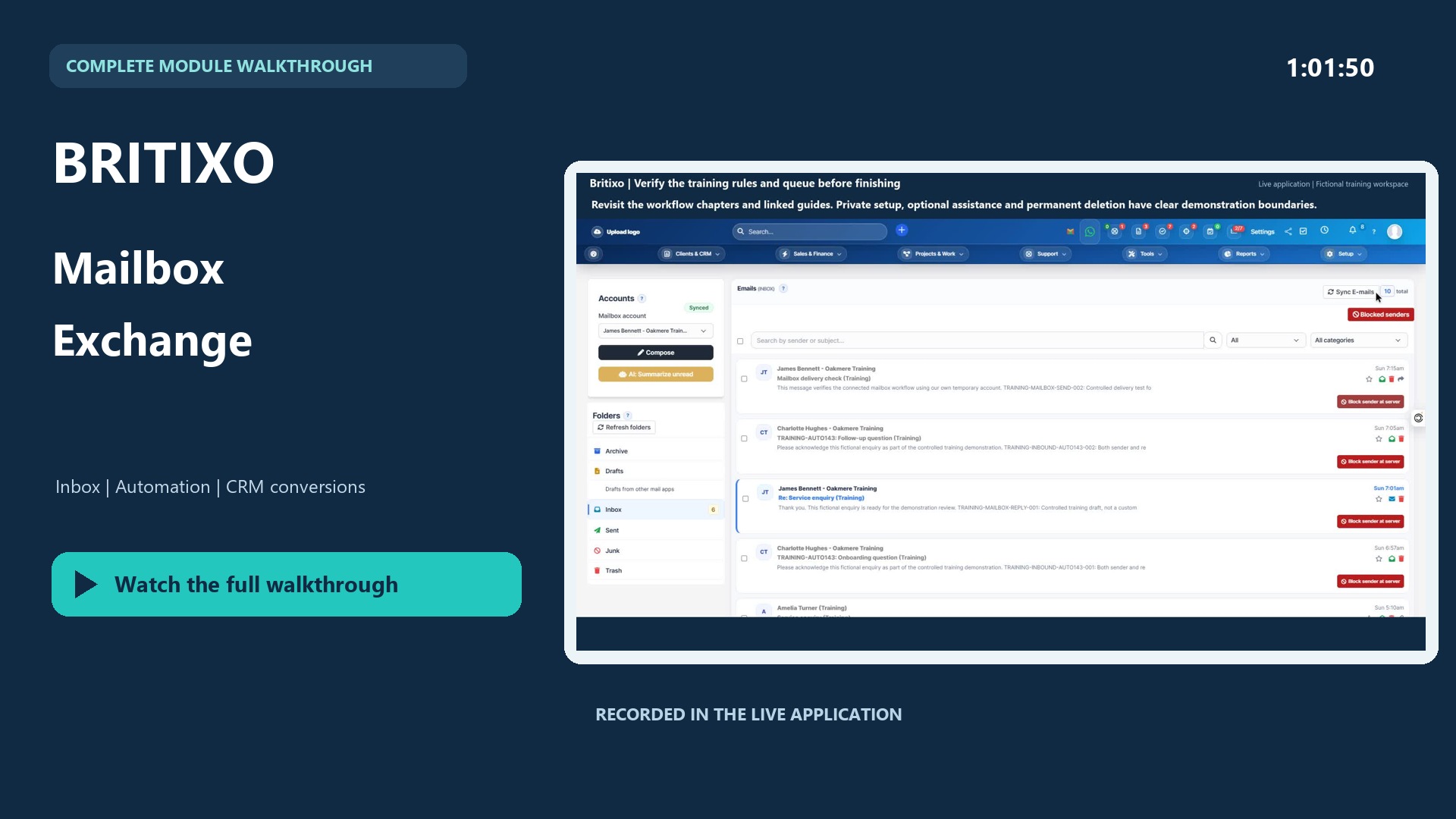
Watch the complete walkthrough
Follow live clicks through secure IMAP and SMTP setup, message search, attachments, reusable content, drafts, sending, scheduling, bounded automatic replies, CRM conversions, sender controls, evidence exports and separate member and role permissions. Private authentication and configuration-only demonstrations are clearly explained.
Watch this walkthrough on YouTube
Use the YouTube player for this complete walkthrough. Loading the player connects to YouTube; the video remains paused until you press Play. The chapter links, transcript and downloadable version above remain available.
Browse 48 feature chapters
- Module purpose and workflow
- Create an inactive email template
- Verify the saved template
- Create a communication category
- Edit reusable email content
- Activate and restore a template
- Edit and deactivate a category
- Search and export reusable content
- Secure IMAP and SMTP setup
- Signature and private authentication
- Connect and sync the inbox
- Search, starred and unread filters
- Read email and download attachments
- Message PDF and attachment preview
- Prepare the template and composer
- Insert a template and save a draft
- Edit a draft and remove its attachment
- Schedule and verify queued mail
- Edit the schedule and cancel delivery
- Save a reply with the original context
- Reply all and forward an attachment
- Verify owned-mailbox sending and receipt
- Switch accounts and review active states
- Reactivate and verify the second account
- Create a bounded automatic reply
- Review and activate the controlled rule
- Verify the real automatic acknowledgement
- Check the repeat cap and disable the rule
- Bulk read, star and category actions
- Convert an email into a CRM task
- Verify the task and copied attachment
- Convert an email into a support ticket
- Verify ticket requester and routing
- Check duplicates and create a CRM lead
- Verify the lead, source and activity
- Reopen the existing conversion
- Verify all four CSV registers
- Block a controlled sender at the server
- Unblock and restore the empty policy
- Search compliance and export a conversation
- Generate a multi-conversation case pack
- Review sync and attachment limits
- Review optional provider configuration
- Shared mailbox Read, Send and Delete
- Review separate staff-role capabilities
- Review account assistance preferences
- Permanent-delete warning and Cancel
- Verified training state and workflow recap
Read the full transcript
Britixo CRM Email & Mailbox Exchange | Complete Walkthrough
00:00 Module purpose and workflow Mailbox Exchange brings your email into the CRM. Connect an authorised mailbox, sync and search messages, reply or forward, and turn correspondence into tasks, tickets or leads. Templates, categories, drafts and scheduled sending support the workflow, with optional AI and compliance tools. We start with an empty training account and connect a temporary mailbox as part of this walkthrough.
Use Email Templates for reusable wording and Categories to organise the communication workflow. A template stores content; it does not send a message. In this walkthrough, we will distinguish saved preparation from scheduled or delivered email, and verify each stored change. Account credentials and any private authorisation steps belong outside the recorded footage.
Review Drafts, Scheduled and Email Compliance as separate parts of the workflow. Before a real send, check the account, intended recipients, message content, attachments and applicable permission or consent requirements. Use the module chapters and written guides to revisit each feature. This demonstration will not represent an unsent draft or an unconnected mailbox as delivered email.
01:43 Create an inactive email template Open Email Templates and choose Add Template. Enter a name that helps colleagues find the right wording, then add the subject line. Keep Active off while preparing and checking this example. A saved template is reusable content; creating it does not select a recipient, schedule a message or confirm delivery.
Enter the message body in the rich-text editor and review the wording before saving. Keep the greeting, intended action and next step clear. This example contains a training reference so it cannot be mistaken for a real client communication. Review any reusable wording in the context of its eventual recipient before using it in an actual message.
Review the name, subject and message, and confirm Active is off. Select Create once to save the template. In the next chapter, we will reopen the same record and verify its stored content.
02:55 Verify the saved template The saved template is now in the register. Open the same name and check its subject and message body. This is a fresh view of the stored record, so it confirms what was actually saved. Keep the training example separate from real client wording, and check the content again before using any template in an actual message.
Reload the saved template and confirm that its name, subject, body and inactive state remain unchanged. This verifies persistence without creating a duplicate. Active controls whether a template is available for use; it is separate from sending a message. No recipient, sending account or delivery action has been chosen in this example.
03:50 Create a communication category Open Categories and choose Add Category. Enter a short, recognisable name and a description that explains when the label should be used. Categories organise messages; creating one does not move, send or schedule an email. This example uses a training label so it remains separate from a real customer communication workflow.
Use the colour control to give the label a consistent visual identity. Review the hexadecimal colour value and the Active setting before saving. Active controls availability in the communication workflow; it does not change account permissions or prove that a message has been sent. Check the meaning of a label as well as its colour.
Select Save once, return to Categories and reopen the same name. Check the saved description, colour and Active state after a fresh load. This confirms the stored category rather than an unsaved form. We will use the existing record when reviewing edits and availability, so no duplicate category is needed.
05:14 Edit reusable email content Find the existing template in Email Templates and open its name. Review the saved subject and body before changing them, so you update the intended record. Use a clear subject that matches the message purpose. This example refines the onboarding checklist wording while keeping the template name and inactive state unchanged.
Update the body in the rich-text editor, then review the greeting, requested action and next checkpoint. Keep the wording useful when a colleague later chooses this template for a real message. Editing a template changes its reusable content; it does not change an already delivered email or send a new one.
Save the changes once, then reopen the same template from the list and reload it. Check the updated subject and body, and confirm Active is still off. This verifies the saved revision on the original record without creating a duplicate. Review reusable wording before activation and before each real send.
06:37 Activate and restore a template Open the reviewed template, select Active and save the change once. Reopen and reload the same record to verify that activation persisted. Active makes a template available for use in the communication workflow. It does not choose a sending account or recipient, and it does not send a message by itself.
To withdraw a template from active use, clear Active and save once. Reload and confirm that the wording remains stored while the template is inactive. This demonstration restores the training example to its original inactive state. No message, schedule or mailbox connection is created, and the same template record is preserved for later review.
07:39 Edit and deactivate a category Open the existing category and review its saved purpose and colour. Update the description and choose the new colour, then save once and reopen the same record. Verify the changed values after reloading. This updates the existing label instead of creating another category with the same meaning.
Clear Active and save once when a category should no longer be available for new use. Reopen and reload the record to verify the inactive state and retained description and colour. Deactivation is separate from deleting the category. This training example is left inactive, and no email is sent or scheduled.
08:56 Search and export reusable content Use the table search to find the template you intend to export. Check its name and subject, then open Export and choose CSV. Exports follow the reviewed table, so confirm the selection before using the download elsewhere. This example contains only the fictional onboarding template.
Close the export menu before changing views. Open Categories, search for the intended label and export its reviewed table as CSV. Check the category name, description and colour in the downloaded file. Clear the table search afterward so the register is ready for the next review. Downloading does not send email.
10:00 Secure IMAP and SMTP setup Open Mailbox Accounts and choose Add Account. Enter the email address and display name for an account your organisation owns. This training address belongs to a temporary email-only mailbox. Keep sharing off until the required colleagues and their access have been reviewed.
Open IMAP Incoming and use the server settings supplied by your mail provider. This mailbox uses mail dot britixo dot com, port nine nine three, SSL and password authentication. Enter the exact mailbox username and keep certificate validation enabled. Complete the password privately; it is excluded from this recording.
Open SMTP Outgoing. Use your provider host, port and encryption settings rather than copying another organisation's values. This temporary mailbox uses port four six five with SSL and its own username. The SMTP password is another private step. No email is sent while completing these settings.
11:21 Signature and private authentication Use the Signature tab to set a concise sign-off for this mailbox. Then review AI Preferences separately from the mail connection. This training account keeps AI disabled and automatic summary and classification off. Connecting a mailbox does not require enabling an external AI service.
Before choosing Create, enter the mailbox passwords privately and check the account settings. The private credential steps are excluded from this video. We will resume on the saved account and verify the connection using clearly labelled fictional training messages in this dedicated mailbox.
12:10 Connect and sync the inbox After the private connection step, return to Mailbox Accounts. Confirm the saved address, active status, Last Sync time and status. This temporary account shows a successful sync. Verify these results before troubleshooting the inbox; entering server values alone does not prove a connection is working.
Open Inbox and check the selected mailbox before taking action. Folders appear on the left and messages in the main list. Unread counts help identify new items. These four messages are clearly labelled fictional fixtures in our temporary mailbox, so they are suitable for demonstrating real message actions without using customer correspondence.
Refresh folders updates the available folder list. Sync E-mails requests a mailbox synchronisation. Check the resulting status and messages rather than repeatedly clicking while a sync is running. AI Summarize unread is disabled for this training account; enabling AI requires separate authorised provider configuration. Ordinary inbox actions remain available.
13:26 Search, starred and unread filters Use Search by sender or subject to narrow the current mailbox view. Enter a specific phrase, run the search and verify the matching message before opening it. Clear the search and run it again to return to the full view. Searching changes the view; it does not send or delete messages.
Click the star beside an email to flag it for follow-up. Choose Starred in the filter and confirm the intended message appears. Return to All before making another change. A star is a useful review marker; it does not create a task or notify the sender.
Use the envelope control to mark a message read or unread. Here we mark the fictional review reminder as read, check that it is absent from the Unread view, and then restore it to unread. Check the intended message and resulting view rather than relying only on the icon changing.
Choose Has attachments to find emails that contain files. Review the sender and subject before opening or downloading anything. Return to All when finished. We also remove the temporary follow-up star so this demonstration leaves the reviewed messages ready for the next workflow.
15:04 Read email and download attachments Open the intended message and check its sender, subject, received time and recipients. Read the body before replying or converting it into another CRM record. This enquiry is explicitly fictional. Message contents are presented inside the email view; keep the surrounding record context in mind when reviewing any request.
Review the attachment filename, size and type before using its controls. Download retrieves the intended stored file. Here we download the small training brief and verify its contents against the fictional fixture. Treat real attachments according to your organisation security rules, even when the sender appears familiar.
15:54 Message PDF and attachment preview Create PDF exports the reviewed message in a portable document. Confirm the source email before using the export and handle it according to your record-retention rules. This demonstration produces a PDF of the fictional service enquiry; creating the file does not send an email or create a new customer record.
Preview lets you inspect a supported attachment within the application. Open the text brief and review the training marker and content. Preview availability depends on the file type and configured limits. It is separate from Download; return to the message when the review is complete.
16:39 Prepare the template and composer Open the existing training template and enable Active after checking its wording. Save and reopen the same record to confirm availability. We enable only this fictional example for the next compose demonstration. Template activation does not send a message; we will restore it to inactive after checking the saved draft.
17:08 Insert a template and save a draft Open Inbox and choose Compose. Check From and To, and review the optional Cc and Bcc fields. Choose the reviewed active template, then confirm replacement of the existing draft content only when intended. Verify the inserted subject and body. This training draft is addressed only to our temporary mailbox.
Review and personalise the subject and rich-text message for its purpose. A template is a starting point; check its wording and any signature before using it. Attach only the intended file and confirm the chosen filename. This example adds a clearly marked fictional training brief and remains unsent.
Choose Save draft to store the unfinished message without sending it. Open Drafts and find the same subject in the saved list. Verify the account, recipient and draft status before reopening or scheduling it. Save draft, Schedule and Send now are different actions; choose the one required by your workflow.
18:38 Edit a draft and remove its attachment After saving, close the editor and open Drafts. Find the same subject and choose Edit on that record. Check its saved recipient, rich-text message and attachment. A fresh saved view confirms what is stored; the draft is still separate from a sent message.
Update the subject on the existing draft. If a stored attachment is no longer needed, use its Remove control and check that the intended filename disappears. Attachment removal is separate from deleting the draft. This example removes only the fictional training brief from our own draft.
Choose Save draft to update the existing record. Return to Drafts and check that the revised subject appears once for the same recipient. Reopen it to confirm the saved revision and missing attachment. This verifies the edit without sending the message or creating another draft.
The saved draft keeps its own message content. Close the editor, reopen the training template and clear Active, then save and verify the change. Disabling the template removes it from active selection without removing the saved draft. This restores the template to its original training state.
20:42 Schedule and verify queued mail Open the saved draft and check its recipient and message before scheduling. Choose a future local date and time, and verify the time-zone label. This demonstration is addressed only to our controlled temporary mailbox. We will cancel the queued example after reviewing it, so no scheduled training email needs to be delivered.
Choose Schedule to queue the existing draft rather than sending it immediately. Close the editor and open Scheduled. Find the same subject and recipient, then review the scheduled time, status and available actions. A queued item still needs the sending service to process it; the queue is separate from confirmed delivery.
21:35 Edit the schedule and cancel delivery Open Edit on the scheduled row and check that its saved date, time, zone and recipient are correct. Change the future time on this same record, then choose Schedule to save the revision. We keep the controlled training recipient unchanged and verify the updated queue instead of creating a second message.
Review the revised queue time before choosing an action. Send now requests immediate sending, while Cancel on the Scheduled row stops the queued item. Cancel inside the editor only closes that form. Here we cancel the fictional queued example and verify that it is no longer awaiting delivery.
Reload Scheduled and confirm that the training message is no longer queued. This demonstrates a saved cancellation rather than simply closing a dialog. The next workflow will use a separate controlled self-test for immediate sending; this scheduled example has not been delivered.
22:50 Save a reply with the original context Open the intended email and choose Reply. Check To and Cc, the reply subject and the quoted correspondence before writing. This fictional message directs replies to our controlled temporary mailbox. The account signature and original message provide context, but the recipient fields still need your review.
Write your response above the signature and quoted original. Review the requested next step and keep the reply relevant to the correspondence. This training response is clearly marked fictional. It preserves the original message and account signature so the saved reply can be checked in context.
Choose Save draft to store the reply for review. Close the reply and message views, then open Drafts and find the same reply subject. Check its recipient and reopen the saved record before delivery. Saving a reply draft does not confirm that an email has been sent.
24:12 Reply all and forward an attachment Open the intended message, use More and choose Reply all when the full conversation needs a response. Review every To and Cc address before writing or sending. This training message produces only the controlled mailbox address. We close this preview without saving another reply or contacting anyone.
Choose Forward and check the prefixed subject and quoted original. Enter only the intended new recipient and review Cc and Bcc. The form explains that available original attachments are included when the forward is saved or sent. Review those files for the new audience before choosing a delivery action.
Add a short introduction explaining why the recipient should review the forwarded content. Preserve the original message so the context remains clear. Check the signature and attachment policy as part of the review. Our introduction and original brief are both marked as fictional training content.
Save the forward as a draft and find the same subject in Drafts. Reopen that saved record and check its recipient, introduction, quoted original and copied attachment. This confirms the stored forward and its file before any send. The demonstration remains addressed only to our temporary mailbox.
26:13 Verify owned-mailbox sending and receipt Choose Compose and check the sending mailbox. Enter the intended To address, review Cc and Bcc, and write a clear subject and message. Check the signature and any attachments before sending. This demonstration uses only our own temporary mailbox, so the test message can be checked safely at both ends.
Choose Send now for immediate sending, then review the result before taking another action. Open Sent for the selected mailbox and check the same subject. This confirms the processed outgoing item. Our controlled test is addressed to the same mailbox so we can also check its arrival in Inbox.
Return to Inbox and synchronise the mailbox. Open the matching test message and check its sender, recipient and content. This example arrives in our own Inbox because we addressed it to ourselves. In a real workflow, review later correspondence and available delivery information separately from the initial send result.
27:30 Switch accounts and review active states Mailbox Accounts lists each connection separately. Check the email address, provider, sharing, active status and last synchronisation result. We prepared a second controlled mailbox using the same secure settings and private credential process shown earlier. Both connections belong to this fictional training workspace.
Open Inbox and choose the required mailbox from the account selector. Review its folders and messages before taking action. Charlotte's new training mailbox is empty; synchronise it and check the result. Return to James's mailbox to see the earlier controlled test. The account selector determines which connection you are working with.
Return to Accounts and turn Active off for the intended connection. Reload the register and confirm the change. Deactivation withdraws that connection from active use without deleting the mailbox account record. Here we change only Charlotte's temporary connection, while James's mailbox stays active.
29:00 Reactivate and verify the second account Turn Active on again when the connection is ready for use. Reload and confirm that the same mailbox record is active. This demonstration restores both training connections to their original active state, ready for the controlled automation test. No sharing permissions or other staff access are changed.
29:25 Create a bounded automatic reply Open Auto Replies and choose Add Auto Reply. Give the rule a clear name and keep Active off while preparing it. Choose Only these senders and Equals, then enter the authorised sender address. This controlled demonstration will match only Charlotte’s temporary mailbox.
Choose a subject match that fits the intended workflow. Contains matches the chosen phrase in the subject; the other options support more specific matching. Enter a clear reply subject and body. Leave the reply subject empty only when you want the default reply subject. Our test uses an explicit training trigger and acknowledgement.
Use Selected accounts to restrict the rule to the intended mailbox. Choose Only once per sender when repeated acknowledgements are not required. Review the cooldown and daily maximum as additional limits. This example applies only to James’s mailbox, with a sixty-minute cooldown and a maximum of one automatic response per day.
Weekends only and Time window enabled provide optional timing restrictions. When using a time window, review the start, end and time zone together. Here we show an example window in Europe London, then leave both timing restrictions off for the bounded test. The sender, mailbox, subject and repeat limits remain in place.
Review every restriction, then choose Create once. Reopen and reload the saved rule to verify its sender match, subject trigger, selected mailbox, frequency and limits. Confirm Active is still off. Only after this stored configuration has been checked should you activate an authorised automatic-reply workflow.
31:55 Review and activate the controlled rule Check the saved rule before enabling it. This test accepts only Charlotte’s controlled sender address and the training subject phrase, and applies only to James’s mailbox. It allows one response per sender, a sixty-minute cooldown and a daily maximum of one. These restrictions keep the demonstration bounded.
Select Active and save the existing rule. Reopen and reload it, then verify that Active is on and every restriction remains unchanged. We will send a controlled training message from the second mailbox, check the automatic acknowledgement, and turn the rule off after verifying the result.
32:50 Verify the real automatic acknowledgement A test message has been sent from Charlotte’s controlled mailbox to James’s mailbox. Synchronise and open the matching onboarding question. Check its sender, recipient and training content. The saved rule matches that sender and subject, so the acknowledgement is handled by the automatic-reply workflow.
Close the incoming message and select Charlotte’s mailbox. Synchronise and find the configured acknowledgement subject. This is the other end of the controlled test. We are checking the response in the recipient mailbox, rather than relying only on the rule being marked Active.
Open the acknowledgement and review its sender, recipient and message. The response should contain the wording saved in the rule. This controlled mailbox has received one acknowledgement from James’s mailbox. We will next check the repeat limit, then return the training rule to inactive.
33:58 Check the repeat cap and disable the rule A second controlled message has been sent from the same sender with the same training subject phrase. Synchronise James’s mailbox and open the follow-up question. Confirm its sender and content before comparing response counts. This checks the repeat policy against a real second arrival.
Return to Charlotte’s mailbox and synchronise it. With the configured repeat limits, the controlled test should still have one acknowledgement. Review the matching subject, then refresh again after processing. The original response remains available, while the second matching enquiry does not produce another acknowledgement in this test.
Return to Auto Replies and open the same rule. Clear Active, save and reload it. Confirm that the training rule is inactive and its restrictions remain stored. This finishes the controlled automation test with one acknowledgement and restores the rule to its original inactive state.
35:40 Bulk read, star and category actions Open the existing Onboarding category, select Active and save the change. Reload to verify its availability. Active categories can be selected when organising messages. This demonstration uses the category prepared earlier, and will return it to inactive after the bulk-action workflow.
Select the two controlled enquiries and review the selected count. Choose Mark unread and verify the result, then select them again and choose Mark read. Completed bulk actions refresh the view and clear the selection, so check it again before the next action. The two enquiries finish in their original read state.
Select the same enquiries and choose Star. Use the Starred filter to focus on the flagged group, then check that the intended subjects are present. Bulk actions apply to the selected messages, while filters determine what the current view displays. Review both before continuing.
Select the intended messages, choose Onboarding in the bulk category control and select Apply. Verify the category labels, then choose Onboarding in the view filter. Category assignment and filtering are separate steps: one changes the messages, and the other narrows the view.
Choose Clear category for the selected group, then return to All categories. Remove the temporary follow-up stars with Unstar and return to the All message filter. Check the saved result on the same enquiries. This training exercise restores their original read status, empty category and unstarred state.
Return to Categories and reopen the same training label. Clear Active, save and reload it. Confirm that its name, description and colour are retained while the category is inactive. This completes the category workflow and leaves the controlled messages and training configuration in their reviewed original states.
38:59 Convert an email into a CRM task An email can become a task, support ticket or lead without retyping its original context. Open the service enquiry and choose Convert to Task. Review the prefilled subject, message description and attachment option before creating anything. Conversion creates a separate CRM record; it does not send a reply to the sender.
Replace the email subject with a specific action. Keep the original correspondence in the description, add the review instruction and leave Include email attachments selected for the supporting brief. Set the due date, priority and assignee. This example assigns the fictional review to James Bennett with a Medium priority.
Check the source message and the task details, then choose Create once. The CRM opens the new task in a separate tab. Check the saved title, original email context, due date, priority, assignee and copied brief there. A successful conversion should be verified in the destination record, rather than inferred from the email screen alone.
40:33 Verify the task and copied attachment The new task contains the review instruction and original email context. Check the saved due date, Medium priority and James Bennett as assignee. Review the current task status as well. The copied email has become actionable CRM work, while its original mailbox message remains available.
Scroll to Attachments and choose the supporting service brief. The task has its own copied attachment from the original enquiry. Download and review the intended file, then keep subsequent task updates in the CRM record. Including an email attachment does not authorise wider sharing of that file.
Reload the task and check its saved details again. The action title, original correspondence, due date, priority, owner and brief remain stored together. We have created this fictional task once and verified its destination, rather than creating another task to repeat the demonstration.
41:45 Convert an email into a support ticket Open the controlled onboarding question and choose Convert to Ticket. Review the prefilled subject and email context. A ticket is appropriate when the enquiry needs a support owner, department and service workflow. This fictional request came from the second temporary mailbox, so any configured requester notification stays within the demonstration.
Enter a clear ticket subject and add the internal review instruction while preserving the original correspondence. Choose the training customer-care department, its portal-guidance service, Medium priority and Open status. Assign James Bennett. Review the attachment choice as well; this controlled enquiry has no supporting file to copy.
Review the selected routing and choose Create once. The new ticket opens in its native support workspace. Check the requester, subject, original email, department, service, priority and assigned colleague there. Ticket creation and its configured notifications follow the support workflow, so review those settings before converting real customer correspondence.
43:33 Verify ticket requester and routing The new support ticket opens with the controlled requester and original enquiry. Review Ticket Information: the subject, requester email, training department, portal-guidance service, Medium priority and James Bennett are saved. These values should match the routing selected during conversion. This is a support record created from the incoming correspondence.
Scroll to Request History and review the copied email and internal instruction. Reload and verify that the requester and routing remain saved. The Add Reply editor is a separate action: its proposed response status does not mean a reply has been submitted. We are verifying the conversion and leaving that response unsent.
44:27 Check duplicates and create a CRM lead Before converting correspondence into a new lead, search the lead register for the sender. Review any matching person or organisation first, so that an existing enquiry is not accidentally duplicated. This controlled mailbox address has no matching lead in the demonstration register. Clear the search after the check and return to Mailbox Exchange.
Open the controlled follow-up enquiry and choose Convert to Lead. Wait for the source content and correspondent details to load. Check the sender email and name rather than assuming that every address in a thread is the prospective client. Review the original message and keep any unverified phone number blank.
Review Charlotte Hughes as the fictional contact and enter Oakmere Training as the company. Keep the verified email address, add the review instruction above the original correspondence and leave the phone number blank. Select Website enquiry as the source, New enquiry as the status and James Bennett as owner. Check the attachment choice before saving.
Review the identity, source, status and owner, then choose Create once. The lead opens in the native CRM workspace. Verify the saved profile and original email context there, then use the lead workflow for subsequent follow-up. Converting an email creates a CRM record; it does not itself send a reply to that enquiry.
46:32 Verify the lead, source and activity The new lead profile contains Charlotte Hughes, the controlled email address and Oakmere Training. Check Website enquiry as the source, New enquiry as the status and James Bennett as owner. Review the original email and added instruction in the description. The unverified phone field remains empty, and the lead is private.
Open Activity Log and review the creation entry attributed to James Bennett. Return to Profile, reload and confirm that the saved identity and enquiry remain present. This completes the three email-to-CRM examples: a task for internal action, a ticket for support and a lead for sales follow-up. Each example was created once and checked in its destination workspace.
47:30 Reopen the existing conversion Reopen the follow-up email after its conversion. The Converted marker identifies the CRM record type and number created from that message. Use that reference when reviewing the destination; it is not an instruction to create another copy. This email shows the lead created and verified in the preceding example.
Close the email and return to Leads. Search the controlled email address and open Charlotte Hughes. Confirm the recorded lead number and retained enquiry. This is the existing converted record, so subsequent sales follow-up can continue there without converting the same email again. The source marker and destination profile provide two useful checks of the workflow.
48:24 Verify all four CSV registers Review the template register and choose Export, then CSV. Repeat the download from Categories. The Active column now includes the stored status as zero or one: zero means inactive, and one means active. These reviewed training records are inactive. Check the downloaded rows against the intended register before using the export.
Open Auto Replies and review the stored training rule and account scope. Export its register as CSV and verify that the rule remains inactive. Downloading a register does not enable its rules. The controlled acknowledgement test remains stopped, with the sender, account and repeat limits retained in the saved configuration.
Open Accounts and review the two controlled connections. Download the CSV and check the account rows and Active column. Both demonstration connections are active, so their exported values are one. The earlier inactive registers use zero. The account export contains connection identity and status information, without the stored authentication passwords.
49:41 Block a controlled sender at the server Use Block sender at server beside the intended email. Review both the sender and receiving mailbox in the confirmation. This is a receiving-server rejection rule for future matching messages, rather than a local label or a way to remove existing mail. This demonstration changes only our two temporary training addresses.
50:04 Unblock and restore the empty policy Blocked senders shows the saved rejection rules for the selected receiving mailbox. Verify the controlled sender in this mailbox-specific register. The result confirms that the server saved the requested rule. This demonstration does not send an extra message while the rule is active. Next, we will remove the temporary rule and restore the original state.
Choose Unblock for the same saved sender. Check both addresses again and confirm. Refresh the register and verify that no saved blocks remain for this mailbox. Unblocking permits future matching email; it does not recover messages that a server previously rejected. The controlled training rule is now removed.
50:56 Search compliance and export a conversation Open Email Compliance and choose the receiving mailbox you are authorised to review. Search for a keyword, person, email address, subject or stored message identifier. This is a read-only search of stored correspondence. The results group matching messages into conversations, and an exported conversation can contain messages beyond the single search match.
Use the date range to narrow the review period, then choose received messages and the attachment filter. Check that each filter describes the evidence you intend to find. The result count reflects matching correspondence in stored conversations. Filtering the search does not delete mail or change the source message, and it does not narrow a full-conversation PDF to just one matching email.
The additional filters cover email address, subject, Message-ID, thread, read status, flagged and important status. Mailbox record state can include stored local trash where available. These filters search the application records; they do not restore server-deleted messages. Review the meaning of each field and reset filters when starting a different evidence search.
Check the result and choose Generate Legal PDF for the intended conversation. The app compiles the stored exchange in chronological order, with message details, available headers, attachment evidence and integrity digests. Review the downloaded document before sharing it. Its name describes the export feature; creating a PDF does not by itself establish legal admissibility or verify the truth of its contents.
52:55 Generate a multi-conversation case pack Reset the earlier filters and choose the intended readable mailbox. Search for the controlled training subject to find the two related enquiry conversations. Review the visible subjects, mailbox and dates before selecting anything. A case pack combines separate stored conversations; use the specific conversations relevant to the matter rather than exporting every available result.
Enter a recognisable case reference and a clear evidence-pack title. Select the two reviewed conversations and check that the counter says two selected. The app supports between two and twenty conversations per pack. Each selected conversation is compiled as a full stored exchange, with an index and a pack-level evidence manifest.
Choose Generate Case Evidence Pack once and check the downloaded PDF. Review its reference, title, conversation index and evidence manifest against the intended source. The export preserves the stored scope; it does not independently certify an email or replace a retention policy. After downloading, clear the training selection and reference so the next review starts with a clean form.
54:18 Review sync and attachment limits Open MailboxAI Settings as an authorised administrator. General controls whether the module and recipient suggestions are available. Suggestions can help locate staff, customers, contacts and leads when composing, but always verify the intended address before sending. This chapter reviews the existing configuration without saving a change.
Open Sync Mode to review Hybrid, Cron only and Manual only. Hybrid combines background jobs, manual sync and bounded web sync; Cron only depends on the configured server schedule. Manual only requires an explicit sync. Review the interval, unseen-message choice, initial history window, per-folder limit and processing chunk size for the expected mailbox workload.
The web-sync controls set whether light synchronisation can run while using the app, how stale a mailbox must be and the maximum time and message count per run. These limits help bound interactive work. Check the workspace background-job configuration separately; an enabled switch alone does not prove that every external provider or scheduler is working.
Open Attachments and check whether downloading is enabled, the maximum attachment size and the allowed extensions. Choose limits that fit the operational workflow and review downloaded files using your usual controls. A permitted extension is a configuration choice, not proof that a file is safe. The saved settings and existing messages remain unchanged in this demonstration.
56:06 Review optional provider configuration Review the AI automation, summary, classification and language controls, then the provider and model. Working outputs require compatible private provider credentials and appropriate data handling. Keep any key outside the recording. This chapter shows configuration only: no provider request or generated result is demonstrated. Choose Cancel to leave the saved setup unchanged.
56:34 Shared mailbox Read, Send and Delete On the account form, Shared mailbox reveals the staff-members table. Select the intended staff member and review the individual access choices. This example uses a new unsaved form and the existing demonstration owner; it does not change either connected mailbox or grant another colleague access. Account sharing is separate from a staff role allowing entry to the module.
Read, Send and Delete are independent member choices. Read permits reviewing accessible correspondence; Send permits outgoing use of the mailbox; Delete is a separate, consequential capability. In this preview, keep Read selected and turn Send off, with Delete off. Review these choices for each member before saving an actual shared account.
Remove the preview member, return Shared mailbox to No and choose Cancel. The connected account register still contains the two original personal training mailboxes. No new account is created, and no sharing or role permission is saved. In a live team, confirm both the staff-role capability and the mailbox-specific member access before testing the colleague experience.
58:01 Review separate staff-role capabilities Staff roles separately control Mailbox, Accounts, Email Templates, Auto Replies and Categories. Review the View, Create, Edit and Delete choices for each area. These role capabilities work alongside mailbox ownership and member permissions; one layer does not replace the other. This existing training role remains empty. We review its controls without granting access or clicking Save.
58:30 Review account assistance preferences AI Preferences provides account-specific language, tone, length and signature choices, plus automatic-summary, classification and reply-style controls. These preferences sit alongside the workspace provider configuration. Open the available tone, length and signature options to review them. This blank form is a preview only; no new mailbox or paid provider request is created.
A working provider connection is required before assistance can generate a result. Keep credentials private and review any generated summary, classification or reply before relying on it or sending mail. This walkthrough records the available configuration controls rather than presenting an invented AI output. Choose Cancel to discard the blank account form and return to the connected accounts.
59:28 Permanent-delete warning and Cancel Use the inbox search to find the controlled self-test, open it and review the training marker before using Delete. The current control permanently removes mail from the receiving server; it is not a move to local trash. Open the warning only after checking the item. In this walkthrough, we choose Cancel and preserve the training message. No permanent deletion is demonstrated or performed.
The native warning has been cancelled. Reload the receiving inbox and verify that the same training message is still present. The Email Compliance record-state filters do not undo server deletion, and bulk Delete requires the same care. Review the applicable retention decision before confirming any real permanent removal.
1:00:27 Verified training state and workflow recap Review the connected accounts, then check the training templates, categories and automatic reply rule. Both owned mailbox connections remain active, while the temporary reusable records and acknowledgement rule are inactive. Scheduled has no training message waiting for delivery, and the temporary sender block has been removed. These checks leave the demonstration ready for the remaining module filming.
Mailbox Exchange brings receiving, reviewing and responding into the CRM workspace. Use the chapters to revisit secure connections, message search, reusable content, drafts, sending and scheduling, bounded automatic replies, bulk organisation, CRM conversions, sender policies and evidence exports. Keep private authentication off screen, review access at both permission layers and use the linked help guides for the specific workflow. Optional provider-assisted outputs were not generated, and the permanent-delete warning was cancelled.
Recorded in the live Britixo application using a disposable workspace and fictional training records. Available actions depend on your role, enabled modules and authorised integrations.
Mailbox Exchange module overview
Mailbox Exchange module overviewUnderstand how every module workspace connects.
Open guide →GuideActivate Mailbox Exchange locally
Activate Mailbox Exchange locallyCreate required tables/options through the supported module activation flow.
Open guide →GuideUnderstand Mailbox Exchange local licence behaviour
Understand Mailbox Exchange local licence behaviourUnderstand the local activation screen and disabled marketplace callbacks.
Open guide →GuideAssign Mailbox Exchange mailbox permissions
Assign Mailbox Exchange mailbox permissionsGrant the mailbox capability group.
Open guide →GuideAssign Mailbox Exchange account permissions
Assign Mailbox Exchange account permissionsGrant account-management capabilities.
Open guide →GuideAssign Mailbox Exchange template permissions
Assign Mailbox Exchange template permissionsGrant email-template capabilities.
Open guide →GuideAssign Mailbox Exchange automatic-reply permissions
Assign Mailbox Exchange automatic-reply permissionsGrant automatic-reply rule capabilities.
Open guide →GuideAssign Mailbox Exchange category permissions
Assign Mailbox Exchange category permissionsGrant message-category capabilities.
Open guide →GuideUnderstand the Mailbox Exchange menu and exact routes
Understand the Mailbox Exchange menu and exact routesUse every code-registered workspace.
Open guide →GuideUse the Mailbox Exchange topbar unread indicator
Use the Mailbox Exchange topbar unread indicatorReview total and per-account unread counts.
Open guide →GuideUse Mailbox Exchange menu badges
Use Mailbox Exchange menu badgesInterpret unread, draft and scheduled counters.
Open guide →GuideUnderstand Mailbox Exchange demo mode restrictions
Understand Mailbox Exchange demo mode restrictionsKnow which actions are blocked by MAILBOXAI_DEMO.
Open guide →GuideResolve an empty Mailbox Exchange account list
Resolve an empty Mailbox Exchange account listCreate or obtain access when Inbox has no accessible account.
Open guide →GuideUnderstand accessible Mailbox Exchange accounts
Understand accessible Mailbox Exchange accountsKnow how ownership and shared membership determine access.
Open guide →GuideOpen Mailbox Exchange settings
Open Mailbox Exchange settingsOpen the administrator-only configuration screen.
Open guide →GuideEnable or disable Mailbox Exchange globally
Enable or disable Mailbox Exchange globallyControl module processing without deleting records.
Open guide →GuideChoose the Mailbox Exchange synchronisation mode
Choose the Mailbox Exchange synchronisation modeSelect cron, hybrid or manual-only operation.
Open guide →GuideSet the Mailbox Exchange sync interval
Set the Mailbox Exchange sync intervalChoose account due interval.
Open guide →GuideSynchronise only unseen messages
Synchronise only unseen messagesLimit account sync to unseen mail where supported.
Open guide →GuideSet the initial Mailbox Exchange sync period
Set the initial Mailbox Exchange sync periodLimit historical retrieval on initial sync.
Open guide →GuideSet the maximum messages per folder
Set the maximum messages per folderLimit folder processing scope.
Open guide →GuideSet the Mailbox Exchange sync chunk size
Set the Mailbox Exchange sync chunk sizeControl sync batch size.
Open guide →GuideControl attachment downloading during sync
Control attachment downloading during syncChoose whether attachments are stored locally.
Open guide →GuideSet the maximum Mailbox Exchange attachment size
Set the maximum Mailbox Exchange attachment sizeSet local attachment size limit.
Open guide →GuideConfigure allowed Mailbox Exchange attachment extensions
Configure allowed Mailbox Exchange attachment extensionsDefine the normal allow-list.
Open guide →GuideEnable recipient autosuggestions
Enable recipient autosuggestionsControl CRM address suggestions.
Open guide →GuideEnable Mailbox Exchange AI features
Enable Mailbox Exchange AI featuresControl availability of AI actions.
Open guide →GuideConfigure automatic email summarisation
Configure automatic email summarisationSet automatic summary preference.
Open guide →GuideConfigure automatic email classification
Configure automatic email classificationSet automatic classification preference.
Open guide →GuideChoose the Mailbox Exchange AI provider
Choose the Mailbox Exchange AI providerSelect the supported provider.
Open guide →GuideStore the OpenAI API key securely
Store the OpenAI API key securelyAdd or retain the encrypted AI credential.
Open guide →GuideChoose the Mailbox Exchange OpenAI model
Choose the Mailbox Exchange OpenAI modelSet the provider model identifier.
Open guide →GuideSet global AI language, tone, length and signature defaults
Set global AI language, tone, length and signature defaultsSet inherited writing preferences.
Open guide →GuideUnderstand AI maximum characters and PII redaction options
Understand AI maximum characters and PII redaction optionsUnderstand technical AI options not exposed by the supplied settings view.
Open guide →GuideConfigure Mailbox Exchange logging and retention
Configure Mailbox Exchange logging and retentionSet diagnostics and retention days.
Open guide →GuideConfigure hybrid web auto-sync limits
Configure hybrid web auto-sync limitsSet browser-request sync constraints.
Open guide →GuideEnable Mailbox Exchange read receipts
Enable Mailbox Exchange read receiptsControl tracking-pixel generation.
Open guide →GuideOpen the Mailbox Exchange account register
Open the Mailbox Exchange account registerReview personal and shared mailbox connections.
Open guide →GuideCreate a personal Mailbox Exchange account
Create a personal Mailbox Exchange accountAdd a staff-owned connection.
Open guide →GuideEdit a personal Mailbox Exchange account safely
Edit a personal Mailbox Exchange account safelyUpdate an owned connection without revealing secrets.
Open guide →GuideActivate or deactivate a Mailbox Exchange account
Activate or deactivate a Mailbox Exchange accountControl active processing while preserving history.
Open guide →GuideDelete a Mailbox Exchange account and owned data
Delete a Mailbox Exchange account and owned dataRemove the account and module-owned dependants.
Open guide →GuideValidate mailbox email, IMAP host and port
Validate mailbox email, IMAP host and portComplete required connection identity fields.
Open guide →GuideConfigure password-based IMAP authentication
Configure password-based IMAP authenticationConnect with username and encrypted password.
Open guide →GuideConfigure OAuth IMAP authentication
Configure OAuth IMAP authenticationUse the account OAuth path.
Open guide →GuideChoose IMAP encryption and certificate validation
Choose IMAP encryption and certificate validationSet SSL, TLS or none and control certificate checks.
Open guide →GuideConfigure a receive-only Mailbox Exchange account
Configure a receive-only Mailbox Exchange accountLeave SMTP unconfigured when sending is not required.
Open guide →GuideConfigure SMTP sending
Configure SMTP sendingAdd sending server settings.
Open guide →GuideRetain encrypted account secrets during an edit
Retain encrypted account secrets during an editChange non-secret settings without overwriting credentials.
Open guide →GuideUse the Gmail connection preset
Use the Gmail connection presetPopulate standard Gmail fields without overwriting entered values.
Open guide →GuideUse the cPanel mailbox connection preset
Use the cPanel mailbox connection presetPopulate common cPanel values and replace the example domain.
Open guide →GuideUse account email username autofill
Use account email username autofillCopy email into empty username fields.
Open guide →GuideConfigure the account email signature
Configure the account email signatureStore a sanitised mailbox signature.
Open guide →GuideConfigure account-level AI preferences
Configure account-level AI preferencesOverride global AI writing defaults for one account.
Open guide →GuideUnderstand personal and shared mailbox types
Understand personal and shared mailbox typesChoose ownership and membership model.
Open guide →GuideCreate a shared Mailbox Exchange account
Create a shared Mailbox Exchange accountCreate a team mailbox with members.
Open guide →GuideEdit a shared Mailbox Exchange account
Edit a shared Mailbox Exchange accountChange connection or member assignments.
Open guide →GuideAssign shared mailbox read permission
Assign shared mailbox read permissionAllow message access for one member.
Open guide →GuideAssign shared mailbox send permission
Assign shared mailbox send permissionAllow compose, reply, forward and outbox use.
Open guide →GuideAssign shared mailbox delete permission
Assign shared mailbox delete permissionAllow supported local deletion.
Open guide →GuideUnderstand account uniqueness rules
Understand account uniqueness rulesAvoid duplicate account identity.
Open guide →GuideRefresh or synchronise one Mailbox Exchange account
Refresh or synchronise one Mailbox Exchange accountRun manual folder refresh and review outcome.
Open guide →GuideInterpret Mailbox Exchange last-sync status
Interpret Mailbox Exchange last-sync statusRead synced, issue and unknown states.
Open guide →GuideOpen the Mailbox Exchange inbox
Open the Mailbox Exchange inboxOpen an accessible account and folder.
Open guide →GuideChoose an account in Mailbox Exchange Inbox
Choose an account in Mailbox Exchange InboxSwitch between accessible accounts.
Open guide →GuideRefresh Mailbox Exchange folders
Refresh Mailbox Exchange foldersRetrieve folder list from IMAP.
Open guide →GuideUnderstand the default Mailbox Exchange folder
Understand the default Mailbox Exchange folderKnow default folder selection.
Open guide →GuideNavigate Mailbox Exchange message pages
Navigate Mailbox Exchange message pagesUse inbox pagination.
Open guide →GuideSearch Mailbox Exchange messages
Search Mailbox Exchange messagesSearch by sender or subject.
Open guide →GuideCreate an email compliance report for legal correspondence
Search authorised mailboxes and generate a chronological legal email correspondence PDF with sent and received messages, headers, attachments, timestamps and SHA-256 evidence.
Open guide →GuideFilter all Mailbox Exchange messages
Filter all Mailbox Exchange messagesClear specialised filters.
Open guide →GuideFilter unread Mailbox Exchange messages
Filter unread Mailbox Exchange messagesShow unread only.
Open guide →GuideFilter flagged Mailbox Exchange messages
Filter flagged Mailbox Exchange messagesShow flagged only.
Open guide →GuideFilter starred Mailbox Exchange messages
Filter starred Mailbox Exchange messagesShow starred only.
Open guide →GuideFilter messages with attachments
Filter messages with attachmentsShow messages with attachment records.
Open guide →GuideFilter Mailbox Exchange messages by category
Filter Mailbox Exchange messages by categoryShow one selected category.
Open guide →GuideUnderstand hybrid light-sync conditions
Understand hybrid light-sync conditionsKnow exact conditions for limited web sync.
Open guide →GuideUnderstand the mixed Sent folder
Understand the mixed Sent folderInterpret IMAP messages and local outbox rows together.
Open guide →GuideRead Mailbox Exchange folder counts
Read Mailbox Exchange folder countsInterpret total and unread counts.
Open guide →GuideOpen a Mailbox Exchange message or thread
Open a Mailbox Exchange message or threadView protected detail, attachments and related records.
Open guide →GuideMark a Mailbox Exchange message read or unread
Mark a Mailbox Exchange message read or unreadChange one message state.
Open guide →GuideStar or unstar a Mailbox Exchange message
Star or unstar a Mailbox Exchange messageChange one message star state.
Open guide →GuideAssign or clear a message category
Assign or clear a message categoryClassify or unclassify one message.
Open guide →GuideUse Mailbox Exchange bulk message actions
Use Mailbox Exchange bulk message actionsApply supported action to selected messages.
Open guide →GuideDelete a Mailbox Exchange message locally
Delete a Mailbox Exchange message locallyRemove local module record through access checks.
Open guide →GuideUnderstand protected message-body rendering
Understand protected message-body renderingKnow email HTML sanitisation and CSP.
Open guide →GuideReview a message attachment list
Review a message attachment listView protected attachment metadata.
Open guide →GuideUse the dashboard email-detail view
Use the dashboard email-detail viewOpen a message from dashboard integration.
Open guide →GuideUnderstand topbar auto-refresh behaviour
Understand topbar auto-refresh behaviourKnow automatic unread refresh.
Open guide →GuideOpen Mailbox Exchange compose
Open Mailbox Exchange composeStart a message from an account with send access.
Open guide →GuideEnter To, Cc and Bcc recipients
Enter To, Cc and Bcc recipientsAddress outgoing mail using supported separators.
Open guide →GuideUse Mailbox Exchange recipient autosuggestions
Use Mailbox Exchange recipient autosuggestionsSearch authorised CRM addresses.
Open guide →GuideUse an active email template in compose
Use an active email template in composeInsert reusable active content.
Open guide →GuideWrite a Mailbox Exchange subject and HTML body
Write a Mailbox Exchange subject and HTML bodyComplete outgoing content.
Open guide →GuideSend a Mailbox Exchange message immediately
Send a Mailbox Exchange message immediatelyAttempt SMTP delivery now.
Open guide →GuideSave a Mailbox Exchange draft
Save a Mailbox Exchange draftStore unfinished content.
Open guide →GuideSchedule a Mailbox Exchange message
Schedule a Mailbox Exchange messageQueue mail for future delivery.
Open guide →GuideUnderstand compose action normalisation
Understand compose action normalisationKnow supported action values.
Open guide →GuideAdd attachments to an outgoing message
Add attachments to an outgoing messageStore protected outbox files.
Open guide →GuideForward a Mailbox Exchange message
Forward a Mailbox Exchange messageCreate a forward linked to source.
Open guide →GuideCopy original attachments into a forward
Copy original attachments into a forwardCopy accessible source files.
Open guide →GuideReply to one Mailbox Exchange message
Reply to one Mailbox Exchange messageAddress preferred sender.
Open guide →GuideReply all in Mailbox Exchange
Reply all in Mailbox ExchangeBuild deduplicated reply-all recipients.
Open guide →GuideUnderstand reply subject handling
Understand reply subject handlingKnow Re: prefix behaviour.
Open guide →GuideAppend the account signature and quoted original
Append the account signature and quoted originalKnow automatic reply body additions.
Open guide →GuideSave or schedule a Mailbox Exchange reply
Save or schedule a Mailbox Exchange replyApply draft/schedule rules to replies.
Open guide →GuideUse AI controls while composing or replying
Use AI controls while composing or replyingRequest AI drafting assistance.
Open guide →GuideUnderstand Mailbox Exchange outbox statuses
Understand Mailbox Exchange outbox statusesInterpret every outbox state.
Open guide →GuideOpen the Mailbox Exchange drafts list
Open the Mailbox Exchange drafts listView current staff drafts.
Open guide →GuideOpen the Mailbox Exchange scheduled list
Open the Mailbox Exchange scheduled listView current staff queued messages.
Open guide →GuideEdit a draft or queued outbox item
Edit a draft or queued outbox itemChange editable owned mail.
Open guide →GuideSend an outbox item now
Send an outbox item nowAttempt delivery from an existing item.
Open guide →GuideCancel a queued Mailbox Exchange message
Cancel a queued Mailbox Exchange messageStop a scheduled item.
Open guide →GuideDelete a Mailbox Exchange outbox item
Delete a Mailbox Exchange outbox itemDelete only permitted owned states.
Open guide →GuideRemove an attachment from an outbox item
Remove an attachment from an outbox itemDelete one owned editable outbox file.
Open guide →GuideUnderstand outbox retry behaviour
Understand outbox retry behaviourKnow retry delay and threshold.
Open guide →GuideUnderstand inactive-account send failures
Understand inactive-account send failuresKnow missing/inactive account handling.
Open guide →GuideOpen the Mailbox Exchange email-template register
Open the Mailbox Exchange email-template registerReview staff-owned templates.
Open guide →GuideCreate a Mailbox Exchange email template
Create a Mailbox Exchange email templateSave reusable content.
Open guide →GuideEdit a Mailbox Exchange email template
Edit a Mailbox Exchange email templateUpdate an owned template.
Open guide →GuideActivate or deactivate an email template
Activate or deactivate an email templateControl composer availability.
Open guide →GuideDelete a Mailbox Exchange email template
Delete a Mailbox Exchange email templateRemove an owned template.
Open guide →GuideOpen the Mailbox Exchange category register
Open the Mailbox Exchange category registerReview staff-owned classifications.
Open guide →GuideCreate a Mailbox Exchange category
Create a Mailbox Exchange categoryCreate named coloured classification.
Open guide →GuideEdit a Mailbox Exchange category
Edit a Mailbox Exchange categoryUpdate an owned category.
Open guide →GuideActivate or deactivate a message category
Activate or deactivate a message categoryControl availability without deleting.
Open guide →GuideDelete a Mailbox Exchange category
Delete a Mailbox Exchange categoryRemove through supported model action.
Open guide →GuideOpen the Mailbox Exchange automatic-reply register
Open the Mailbox Exchange automatic-reply registerReview staff-owned rules.
Open guide →GuideCreate a Mailbox Exchange automatic-reply rule
Create a Mailbox Exchange automatic-reply ruleBuild account, sender, subject, frequency and schedule conditions.
Open guide →GuideChoose all or selected accounts for an automatic reply
Choose all or selected accounts for an automatic replySet rule mailbox scope.
Open guide →GuideConfigure automatic-reply sender scope
Configure automatic-reply sender scopeChoose any, only-list or exclude-list.
Open guide →GuideConfigure automatic-reply sender matching
Configure automatic-reply sender matchingChoose wildcard, contains, equals or regex.
Open guide →GuideConfigure automatic-reply subject matching
Configure automatic-reply subject matchingChoose any/text/keyword/regex subject logic.
Open guide →GuideChoose automatic-reply send frequency
Choose automatic-reply send frequencySend every match or once per sender.
Open guide →GuideConfigure automatic-reply subject placeholders
Configure automatic-reply subject placeholdersUse original subject in response.
Open guide →GuideWrite the automatic-reply body
Write the automatic-reply bodyStore response content.
Open guide →GuideLimit automatic replies to weekends
Limit automatic replies to weekendsApply weekends-only condition.
Open guide →GuideConfigure an automatic-reply time window
Configure an automatic-reply time windowSet start/end/timezone.
Open guide →GuideSet automatic-reply cooldown minutes
Set automatic-reply cooldown minutesLimit repeated responses.
Open guide →GuideSet the automatic-reply maximum per day
Set the automatic-reply maximum per dayCap daily sends.
Open guide →GuideUnderstand automatic-reply message exclusions
Understand automatic-reply message exclusionsKnow early skip conditions.
Open guide →GuideUnderstand automatic-reply delivery and logging
Understand automatic-reply delivery and loggingKnow headers, logs and stop behaviour.
Open guide →GuideEdit or disable an automatic-reply rule
Edit or disable an automatic-reply ruleChange matching or stop future execution.
Open guide →GuideDelete an automatic-reply rule
Delete an automatic-reply ruleRemove through permission-checked action.
Open guide →GuideUnderstand Mailbox Exchange AI prerequisites
Understand Mailbox Exchange AI prerequisitesCheck every condition before AI use.
Open guide →GuideGenerate an AI suggested reply
Generate an AI suggested replyCreate an unsent reply suggestion.
Open guide →GuideImprove a draft message with AI
Improve a draft message with AIRewrite draft for clarity/professionalism.
Open guide →GuideSummarise one email with AI
Summarise one email with AIProduce 3–6 bullet summary.
Open guide →GuideClassify one email with AI
Classify one email with AIGenerate a short label.
Open guide →GuideRefine an AI reply with an instruction
Refine an AI reply with an instructionApply user refinement to a draft.
Open guide →GuideUnderstand invalid AI actions
Understand invalid AI actionsKnow supported action names.
Open guide →GuideGenerate an unread email AI summary
Generate an unread email AI summarySummarise newest unread incoming messages.
Open guide →GuideUnderstand effective Mailbox Exchange AI preferences
Understand effective Mailbox Exchange AI preferencesKnow global/account preference resolution.
Open guide →GuideUnderstand Mailbox Exchange AI request limits
Understand Mailbox Exchange AI request limitsKnow input/output parameters.
Open guide →GuideProtect personal information in Mailbox Exchange AI workflows
Protect personal information in Mailbox Exchange AI workflowsApply authorised external-provider controls.
Open guide →GuideConvert an email into a CRM task
Convert an email into a CRM taskCreate core task from message.
Open guide →GuideConvert an email into a CRM ticket
Convert an email into a CRM ticketCreate core support ticket.
Open guide →GuideConvert an email into a CRM lead
Convert an email into a CRM leadCreate native lead from sender/message.
Open guide →GuideReview Mailbox Exchange conversion history
Review Mailbox Exchange conversion historySee created task/ticket/lead mapping.
Open guide →GuideUnderstand Mailbox Exchange read-receipt tokens
Understand Mailbox Exchange read-receipt tokensKnow secure token creation/validation.
Open guide →GuideUnderstand the public read-receipt pixel route
Understand the public read-receipt pixel routeKnow public event processing.
Open guide →GuideInterpret read-receipt evidence correctly
Interpret read-receipt evidence correctlyAvoid overstating tracking evidence.
Open guide →GuideDownload a Mailbox Exchange attachment securely
Download a Mailbox Exchange attachment securelyUse protected download controller.
Open guide →GuidePreview a ZIP attachment safely
Preview a ZIP attachment safelyList archive without extraction.
Open guide →GuidePreview text-like and potentially active attachments safely
Preview text-like and potentially active attachments safelyRender escaped preview.
Open guide →GuideUnderstand denied attachment extensions
Understand denied attachment extensionsKnow security deny-list.
Open guide →GuideUnderstand Mailbox Exchange cron account synchronisation
Understand Mailbox Exchange cron account synchronisationKnow after_cron_run account processing.
Open guide →GuideUnderstand Mailbox Exchange cron outbox processing
Understand Mailbox Exchange cron outbox processingKnow scheduled queue processing.
Open guide →GuideUnderstand queued outbox locking
Understand queued outbox lockingPrevent duplicate sends.
Open guide →GuideUnderstand Mailbox Exchange retry limits
Understand Mailbox Exchange retry limitsKnow retry count and delay.
Open guide →GuideUnderstand Mailbox Exchange database tables
Understand Mailbox Exchange database tablesIdentify module-owned data areas.
Open guide →GuideUnderstand Mailbox Exchange secret encryption
Understand Mailbox Exchange secret encryptionKnow protected credentials.
Open guide →GuideUnderstand Mailbox Exchange CSRF handling
Understand Mailbox Exchange CSRF handlingKnow AJAX request protection.
Open guide →GuideUnderstand Mailbox Exchange account and ownership enforcement
Understand Mailbox Exchange account and ownership enforcementKnow layered access.
Open guide →GuideUnderstand local message deletion scope
Understand local message deletion scopeKnow deletion is local.
Open guide →GuideUnderstand Mailbox Exchange retention and file cleanup
Understand Mailbox Exchange retention and file cleanupKnow dependent cleanup.
Open guide →GuideVerify Mailbox Exchange after installation
Verify Mailbox Exchange after installationRun end-to-end test.
Open guide →GuideTroubleshoot a missing Mailbox Exchange menu
Troubleshoot a missing Mailbox Exchange menuRestore visibility within scope.
Open guide →GuideTroubleshoot account form permission behaviour
Troubleshoot account form permission behaviourHandle supplied capability mismatch safely.
Open guide →GuideTroubleshoot an IMAP authentication failure
Troubleshoot an IMAP authentication failureDiagnose without disabling TLS validation.
Open guide →GuideTroubleshoot an SMTP send failure
Troubleshoot an SMTP send failureDiagnose failed/retried outbox.
Open guide →GuideTroubleshoot Mailbox Exchange sync not running
Troubleshoot Mailbox Exchange sync not runningCheck mode, cron, due and status.
Open guide →GuideTroubleshoot hybrid light-sync not running
Troubleshoot hybrid light-sync not runningCheck all preconditions.
Open guide →GuideTroubleshoot a scheduled message not sent
Troubleshoot a scheduled message not sentCheck due queue and account.
Open guide →GuideTroubleshoot missing recipient suggestions
Troubleshoot missing recipient suggestionsCheck option/query/source permissions.
Open guide →GuideTroubleshoot Mailbox Exchange AI unavailable
Troubleshoot Mailbox Exchange AI unavailableCheck all prerequisites.
Open guide →GuideTroubleshoot an automatic reply not sent
Troubleshoot an automatic reply not sentCheck order, exclusions, conditions, limits and SMTP.
Open guide →GuideTroubleshoot a missing or unsafe attachment
Troubleshoot a missing or unsafe attachmentCheck download/size/extension/storage.
Open guide →GuideTroubleshoot missing read-receipt events
Troubleshoot missing read-receipt eventsAccount for mail-client behaviour.
Open guide →GuideTroubleshoot an email-to-CRM conversion failure
Troubleshoot an email-to-CRM conversion failureCheck permissions/fields/source.
Open guide →GuideRun the Mailbox Exchange operational go-live checklist
Run the Mailbox Exchange operational go-live checklistVerify complete production readiness.
Open guide →