
Manage opportunities from first conversation to close
Step-by-step help for deal pipelines, approvals, activities, forecasts, targets, custom fields, personal views and staff access in Britixo.
Detailed module walkthrough
Watch the complete walkthrough
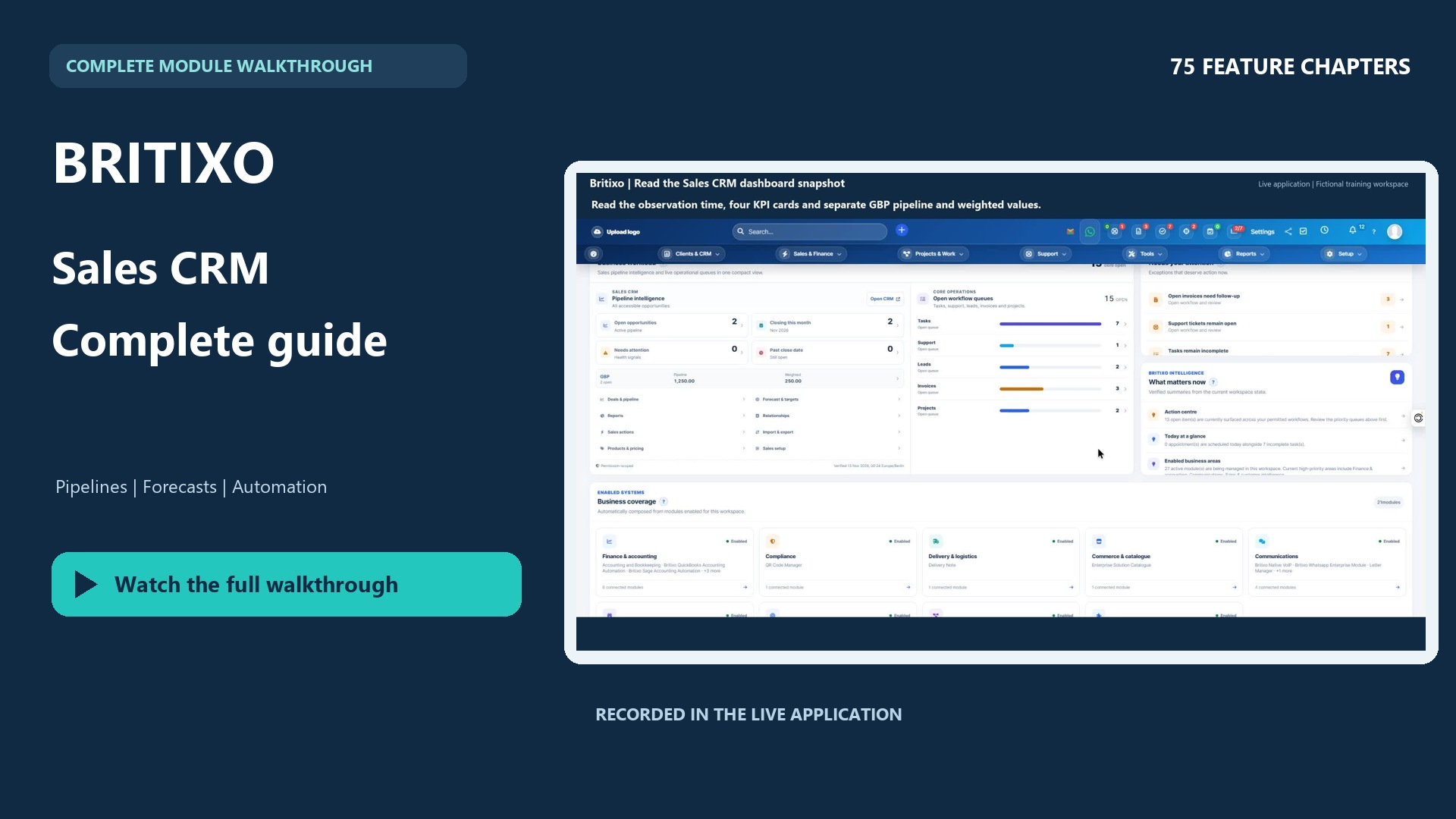
Follow live clicks through opportunity pipelines, activities, forecasts, independent reviews, reports, customer relationships, territories, cadences, automation, guided selling and quotations. Use 75 feature chapters to find the task you need, with clear instructions, United Kingdom English narration, captions and a complete transcript.
Watch this walkthrough on YouTube
Use the YouTube player for this complete walkthrough. Loading the player connects to YouTube; the video remains paused until you press Play. The chapter links, transcript and downloadable version above remain available.
Browse 75 feature chapters
- Module overview
- Create, link and edit opportunities
- Activities and recorded outcomes
- Stages, probabilities and history
- Opportunity buying teams
- Relationship timeline
- Revenue contributions
- Custom opportunity fields
- Explainable deal scoring
- Pipelines and stage requirements
- Contribution reports and exports
- Board, list and pipeline filters
- Personal saved views
- Forecasts and owner targets
- Forecast submission periods
- Submit and revise a forecast
- Lock, close and reopen periods
- Record a training Won outcome
- CSV imports and safe retries
- Sales performance reports
- Saved reports and previews
- Arrange a sales dashboard
- Observed stage funnels
- Opportunity win cohorts
- Report conditions and chart types
- Reusable sales macros
- Reviewed bulk opportunity updates
- Bulk stage and archive workflows
- Bulk activities and outcomes
- Filtered exports and job recovery
- Business roles and buying-team history
- Maintain internal timeline notes
- Link and read existing emails
- Retire and restore typed fields
- Revenue and overlay recognition
- Customer contact reporting maps
- Parent and subsidiary accounts
- Customer-branch sales reports
- Lost outcomes and reopening
- Territories and eligible members
- Capacity, availability and skills
- Follow-up cadences and branches
- Event automation and action order
- Territory hierarchy and lifecycle
- Territory-scoped forecasting
- Native products and catalogue rates
- Price books and volume pricing
- Independent reviewer access
- Independent forecast adjustment
- Controlled stage-review requests
- Required and incompatible products
- Guided product selection
- Quotation validation and calculations
- Save and submit a quotation
- Reject a forecast replacement
- Review a stage request independently
- Request quotation changes
- Quotation approval limits
- Refresh stale quotation terms
- Address and resubmit a stage review
- Approve an independent stage review
- Approve refreshed quotation terms
- Maintain guided selling flows
- Exact approval-policy boundaries
- Quote exports, revisions and estimates
- Price-book availability lifecycle
- Restore the training stage policy
- Reassign opportunities and activities
- Verify final reviewer access
- Native Sales menu navigation
- Dashboard KPI links and currency filters
- Shared and private report definitions
- Link an existing lead and restore
- Discounts and nonzero product tax
- Connected sales workflow recap
Read the full transcript
Britixo Sales CRM: Complete Walkthrough | Deals, Forecasts & Automation
00:00 Module overview Britixo Sales CRM brings opportunities, pipeline stages, customer relationships and follow-up work together. Record the owner, value, expected close date and next step for each opportunity, then use the connected forecast and reporting views to review progress. This walkthrough follows the live module using fictional training records.
Choose New deal to open Create an opportunity. Review the opportunity name, pipeline, stage, owner, currency, value, probability and expected close date. The form also provides a forecast category, next step, notes and relationship lookups. The following chapter enters a clearly marked training opportunity and verifies its saved record.
00:50 Create, link and edit opportunities Enter a clear opportunity name, then review the pipeline, stage and owner. This training example uses Sales pipeline, New opportunity and James Bennett. These fields organise the opportunity and identify who is responsible for its follow-up. Check the selected stage before entering the remaining commercial details.
Choose GBP and enter twelve hundred pounds as the fictional opportunity value. Keep the example probability at ten percent, set the expected close date to eighteen November and review the Pipeline forecast category. These are planning values for the opportunity. Saving this record does not itself request payment or place an order.
Enter the next action in plain language and add recognisable training notes. A useful next step explains the follow-up that needs to happen. Keep the loss reason empty while this opportunity is in its open stage. The next chapter links the intended customer and contact before the final save.
Use Search customer to find Willowbrook. Review the returned customer name, then select Willowbrook Advisory Limited. Linking an existing customer connects the opportunity to that organisation’s CRM context. Check the selected company before choosing a contact, especially when several companies have similar names.
Search for Oliver Reed and select the owned training contact for this company. Review the customer and contact together. Keep No lead for this existing-customer example. A relationship selection connects records; sending a message is a separate action. The opportunity is still unsaved while these choices are being reviewed.
Review the selected company and Oliver Reed contact, with No lead retained for this example. Choose Create deal once after checking the opportunity details. Wait for the saved result. This creates a fictional planning record; the action shown here does not send a message, request a payment or order a service.
Create deal opens the saved opportunity’s detail window. Review its name and summary, then close the window before returning to Control Panel. Open Deals and pipeline again and find the same training opportunity. This checks the saved record through a fresh workspace load without creating another opportunity.
Open the saved opportunity and choose Edit details. Check the name, pipeline, stage, James Bennett, GBP value, probability, date and next step. Review the Willowbrook customer and Oliver Reed contact as well. Close the form after checking, without saving a second time.
Open the existing training opportunity and choose Edit details. Revise the fictional planning value to fifteen hundred pounds and make the next step more specific. Add a short note about the scope review, while keeping the original training marker, customer, contact and ownership.
Choose Save changes once and review the updated detail window. Check the revised value and next step. The same opportunity keeps its customer and contact links, and its history records the update. A new opportunity should not be created for this revision.
Close the saved detail window, reload the Deals workspace through Control Panel and reopen Edit details on the same opportunity. Confirm the revised value, next step and notes, with the intended customer and contact retained. Close the form after checking. This verifies the stored update without saving again.
05:50 Activities and recorded outcomes Open the opportunity and choose Activity. You can plan a call, meeting, task or email reminder, or save a completed note. These are activity records: choosing a call does not place a call, and choosing an email reminder does not send an email. Select Task for this training example.
Enter a clear task title and the date and time using the workspace timezone displayed beside the field. This workspace shows Europe Berlin. The example is thirteen November at ten o’clock in that timezone. Add internal training notes so the purpose of the follow-up is clear.
Choose Add activity once to save this training task. Next, reload the opportunity to check the stored task and its outcome controls.
Close the detail window, reload Sales CRM and open the same opportunity again. Scroll to Activities and confirm the task title, training notes and scheduled time. The saved task is open. Check the actual outcome before completing an activity; Cancel is available when the planned activity should not continue.
The outcome menu includes completed, connected, no answer, positive, negative and rescheduled. For this fictional internal task, choose completed and then Complete. The task now records a completed outcome. This demonstrates the status workflow only; no real conversation, message or service delivery is represented.
07:39 Stages, probabilities and history Use the stage selector in the opportunity detail window. This training record moves from New opportunity to Qualified. Review the next stage before choosing Move or request approval. Stage requirements and approval rules depend on the pipeline configuration; do not assume every move follows the same process.
Choose Move or request approval once. This pipeline accepts the example into Qualified. Check the new stage and probability in the saved detail. The probability-weighted amount is the deal value multiplied by its probability. It is a forecast measure, and changing the stage does not collect an invoice payment.
Choose View stage transitions to review how this opportunity moved through the pipeline. Check the recorded stages, times and staff member rather than relying on the board position alone. This history helps explain progress and supports later funnel and stage-age reporting.
08:50 Opportunity buying teams Open the opportunity, choose Manage buying team and Add contact role. Select an existing contact from the linked customer. This records that person’s business role in this opportunity. The opportunity’s primary contact is managed separately in Edit details; a buying-team role does not change portal permissions or communication preferences.
Choose Champion for this example. Influence and position describe your team’s observations; they do not adjust the deal probability or forecast. Leave both as Not assessed here and add a short training note. Review the contact and role before saving the association.
Choose Add contact role once. Check that Oliver Reed appears as Champion with the training note. Retiring an association later preserves its history and leaves the customer contact available. Use the buying team to plan relevant conversations, while managing access and contact preferences through their own controls.
10:08 Relationship timeline Return to the opportunity and open its Relationship timeline. Choose Add note, enter a clear title and write the useful context for colleagues. Notes are visible to staff who can view the opportunity. This training note records preparation steps; it does not send a message to the customer.
Choose Save note once. The saved note opens in its own preview. Next, return to the timeline to filter notes and check the stored entry.
The saved note opens in its own preview. Choose Back to timeline, select Internal notes under Show and Apply filters. Check the saved preparation note in the filtered timeline. Edit and retire controls are available from the note preview to staff with the appropriate editing access.
Close the window and reload Sales CRM. Open the same opportunity’s Relationship timeline and check the preparation note again. This confirms that the note was stored, rather than only appearing in the entry form. Timeline filters help find relevant context while preserving the recorded opportunity history.
11:50 Revenue contributions Open Revenue contributions and choose Configure allocation. Revenue shares must total one hundred percent. This example assigns the training opportunity’s credit to James Bennett. Optional overlay recognition is reported separately. Contributions do not grant access, change the owner’s forecast or create payments.
Choose Calculate and review. Check the contributor, percentage, currency and calculated amount against the current opportunity value. Read the review before saving an allocation. These numbers describe sales credit for reporting; they do not increase the opportunity value or record a customer payment.
Read the calculated allocation, then tick the confirmation that you reviewed the contributors, percentages and credit amounts. Choose Save reviewed allocation once. This example records one hundred percent of the fictional sales credit for James Bennett, with no overlay recognition and no payment obligation.
Close the window and reload Sales CRM. Open the same opportunity’s Revenue contributions again. Check the contributor, role, one hundred percent share and fifteen hundred pounds of revenue credit. The saved allocation is used by contribution reports when the opportunity matches their filters.
13:47 Custom opportunity fields Open Sales setup and choose Add field. Fields can hold text, numbers, dates, a single choice or a checkbox. This training example adds Service tier as a single-choice field. Choose the type carefully: it cannot change after creation, and choices already used by opportunities must be retained.
Keep this example optional and visible to authorised deal viewers. Enter Standard and Extended on separate lines, and keep the new field Active. Administrator-only fields must remain optional so they do not block sellers. Required fields apply on the next opportunity save or stage transition.
Choose Save field once and find the new definition under Custom deal fields. Check its single-choice type, optional requirement and visibility. Retiring a definition later preserves its stored values. The next opportunity edit can use the field without changing the customer’s native contact record.
14:58 Explainable deal scoring Open Sales setup and choose Add scoring rule. Give the rule a clear name, choose its points and decide whether All or Any conditions should match. This example adds ten fit points only when all the training conditions are met. A fit score is separate from the deal’s win probability.
Choose Deal value, At least, and one thousand. Add a second condition for Currency equal to GBP. Pairing the value with its currency keeps the comparison meaningful. The condition controls update for the field type; missing values use their own Has no value condition.
Add a third condition: Deal name contains the full training opportunity name. This keeps the example specific to the fictional record. Review all three conditions together. All requires every condition to match; Any would allow a match from just one condition.
Choose Save rule once, then open the training opportunity to inspect Deal fit score. Matching rules contribute points, capped between zero and one hundred. Next, expand the explanation to check why the rule matched.
Reload Sales CRM through Control Panel and open the same training opportunity. Check its value, stage probability and weighted forecast before inspecting the fit score. This confirms the score from the saved rule alongside the current record, rather than only reviewing the rule-entry form.
Scroll to Deal fit score and expand Why this score. The example shows ten out of one hundred, with the matching training rule contributing ten points. Scores are capped between zero and one hundred. This qualification assessment is separate from win probability and does not alter the opportunity’s forecast.
17:27 Pipelines and stage requirements Open Sales setup and choose New pipeline. Enter a clear name for the process. Review each stage’s name, outcome and probability in its displayed order. This training pipeline starts with Scope review at twenty percent, followed by the Won and Lost outcomes. The original Sales pipeline stays available.
For Scope review, require Customer, Contact and Next step. These requirements help keep the process consistent before an opportunity enters the stage. Won always uses one hundred percent probability and needs a close date. Lost uses zero percent and needs a loss reason.
A stage can also require approval from another authorised reviewer. Configure a second eligible reviewer before enabling that control; the training example leaves approval off. Stages can be retired while their records and history are retained. Review the complete process before saving the pipeline.
Choose Save pipeline once and find the new process in Sales setup. Check Scope review and its twenty percent probability alongside the Won and Lost stages. Keeping processes separate allows different sales workflows without replacing the original opportunity history.
19:00 Contribution reports and exports Open Reports and Contributions. Choose whether to report Won opportunities by actual close date, or Open opportunities by expected close date. Only accessible opportunities with active allocations are included. This example uses the open training opportunity and its expected close date during November.
Choose All currencies and Update contributions. Check the matching opportunity count, the GBP revenue allocation and the separate overlay recognition. James Bennett’s training allocation shows fifteen hundred pounds and no overlay. These are current sales-credit figures, not accounting revenue, commission payments or the owner’s sales forecast.
Choose Export loaded results to download the displayed report as CSV. The export uses the last loaded report filters and keeps revenue allocation and overlay recognition separate. After changing a period or currency, update the report before exporting. Keep its calculation time in mind: it reflects current opportunity values and current allocations.
20:12 Board, list and pipeline filters In Deals, search for Willowbrook and choose Sales pipeline, James Bennett and Open deals. Apply the filters to focus the board. You can also filter by attention signals when reviewing follow-up needs. The totals and opportunity cards reflect the applied filters, so check the selected scope before interpreting them.
Open More filters. Choose GBP, set the expected-close date range for November and keep Active deals. The Archive filter lets you review archived opportunities separately. Apply the filters again and check the matching result. Currency totals are kept separate rather than adding unlike currencies together.
After applying the date and currency filters, close More filters so the popover no longer covers the board controls. Choose List and inspect the matching opportunity row. Check its value, owner, stage and expected-close details alongside the selected filters.
Open the opportunity from its list row to review the saved details. Close the window and return to Board. Both layouts use the same applied filters; switching layouts does not move an opportunity between stages. The next chapter saves this useful filter combination as a personal view.
21:56 Personal saved views With the intended filters applied, choose Save current filters. Enter a clear view name and keep A new personal view. This saves the pipeline, owner, outcome, search, attention, currency, close dates and archive filters for your staff account. It does not grant access to any additional records.
Choose Save view once. Check that the named definition is available under Personal views. The view belongs to your staff account and continues to respect your current permissions. An existing view can be selected under Save as when intentionally updating its definition.
Reload Sales CRM, then choose the named entry under Personal views. Review the restored filters and matching opportunities. This makes a recurring pipeline review repeatable. Check the selected period and owner each time, especially before exporting results or applying actions to a selection.
23:12 Forecasts and owner targets Open Forecast and targets, then Live forecast and targets. Set the November date range, James Bennett and GBP, and Update forecast. Periods use expected close dates, and currencies stay separate. The displayed view is a sales forecast; won pipeline revenue is not an invoice payment.
Review won revenue, open pipeline and probability-weighted open value. The example has fifteen hundred pounds of open pipeline and three hundred and seventy-five pounds weighted value. Commit and best case are owner classifications, not guaranteed revenue. Attainment compares won revenue with the target for the exact selected dates.
Choose Set target and check the owner, currency and period. Confirm that no target exists for this exact combination, then enter five thousand pounds as the fictional training target. Choose Save target once. This is a planning target, with no payment, invoice or customer instruction created.
Change the forecast end date to twenty-nine November and update. No target is set for that different period. Return to thirty November and update again: the five-thousand-pound target returns. Targets match the exact owner, currency and dates, so use the intended period consistently in reviews.
24:52 Forecast submission periods Open Forecast and targets, then Submissions and review, and choose Open period. Give the period a clear name and choose its currency and dates. These define a fixed forecasting window. The example uses GBP for November. Dates and currency cannot be changed after the period is created.
Choose Sales pipeline and review the territory scope. This example includes all territories within the workspace. Territory selections are fixed at creation, so later hierarchy changes do not silently alter the period. The scope does not widen record access, and each salesperson submits only their own forecast.
Review the name, November dates, GBP currency and pipeline scope, then choose Open period once. Check that the new period is selected under Forecast period. The next step is for the salesperson to submit their own forecast and assumptions, keeping submission evidence and independent review separate.
26:11 Submit and revise a forecast In the selected training period, choose Submit my forecast. Review the period, currency and Current pipeline evidence. A submission is your own total expected revenue for the period, including revenue already won. It is separate from opportunity values and sales targets, and needs clear reasoning.
Enter one thousand pounds as this fictional training estimate and explain the assumptions in plain language. The open opportunity is worth fifteen hundred pounds, but the forecast is a reasoned estimate. Check the GBP currency and keep the training example clearly identified before submitting.
Choose Submit for review once. Check your latest submission and its Pending state in the period. An authorised different reviewer assesses the forecast; this example does not approve its own submission. Accepted and pending amounts must not be added together, and neither represents an invoice payment.
Choose Submit a new version. Update the fictional estimate to twelve hundred pounds and explain the revised assumptions. New versions preserve the earlier submission history. If an accepted amount already existed, it would remain effective until a replacement was approved; this training example has no accepted amount.
Choose Submit for review once. Check that your latest submission is Version two, pending, for twelve hundred pounds. The pending total reflects the current pending version, rather than adding the superseded estimate to it. Accepted amounts and pending submissions remain separate measures.
Choose View history for James Bennett. Review both versions, their assumptions and retained pipeline evidence. The history keeps the earlier estimate visible while the latest version awaits review. This helps explain changes without overwriting the previous record or pretending that the estimate has already been independently approved.
28:32 Lock, close and reopen periods Refresh the selected training period and choose Manage period. Select Locked, enter a clear reason and change the period state once. Locked periods stop new forecast submissions while authorised reviews can continue. This training change applies only to the fictional period and preserves its pending version and history.
Open Manage period again and choose Closed. Enter the reason and save the state change once. A closed period is read only: it retains submissions, reviews and effective amounts without allowing a new submission. Closing the period does not approve the pending forecast or create a payment.
Use Manage period to return the training period to Open, with a clear reopening reason. The submission control returns so corrections can be made through new versions. Check that the existing twelve-hundred-pound pending version remains intact and that the period history records the state changes.
Choose Export CSV for the current period results. Review the owner, currency, amount, version and review state in the downloaded report. Keep accepted and pending totals separate, and use View history for earlier versions. The export describes the visible forecast records; it is not a payment instruction.
30:30 Record a training Won outcome Open Deals and the existing Willowbrook training opportunity. Check the value, owner and close date, then select Won in the stage selector. This is a fictional outcome for the tutorial. Review the pipeline’s entry requirements and any approval gate before recording a real opportunity outcome.
Choose Move or request approval once. Check the Won outcome and its one-hundred-percent probability. The fifteen-hundred-pound example now contributes to won sales pipeline revenue. Invoice creation and payment collection follow their own workflows, and this training status represents no real customer agreement.
Open View stage transitions and check the recorded move from Qualified to Won. The history shows the observed stages, time and staff member. This gives context for conversion and stage-funnel reporting, while preserving the earlier creation and qualification entries.
31:35 CSV imports and safe retries Open Import and export, then Choose and review CSV. Imports create new opportunities from a UTF-eight CSV file, with up to fifty rows and sixty thousand bytes. Each row needs a stable external key and a title. Review the native column reference and existing-record behaviour before preparing a file.
Choose Download blank template and use its exact headers when preparing the CSV. Open Column reference and custom fields to check supported values and any active custom fields. Stable external keys help the system recognise a repeated row, so a retry can be reviewed without blindly creating the same opportunity again.
Choose the separate Scope review training pipeline and its Scope review stage, with James Bennett and GBP as defaults. These defaults fill empty or omitted columns. The training file will include the existing customer, contact and next step required by this stage. Review the file before creating any opportunity.
Close the column reference after checking it, then choose the prepared training CSV file. This example contains one opportunity, with a stable external key, the existing customer and contact, a next step and the Standard service tier. Check the file name and selected defaults before reviewing it.
Choose Review file. Check the external reference, opportunity title and validation result for the proposed row. The preview separates ready rows, previously imported rows and invalid rows. Review is separate from the final creation action; full saved opportunity details can be checked after import.
Read the row result carefully and correct any errors before importing. Keep its external key unchanged when retrying the same source row. This helps distinguish an existing import from a new opportunity. The next step uses the explicit creation control only after checking this preview.
Check one ready to create, zero already imported and zero invalid. Read the warning that creating opportunities may run existing Deal created automation rules. Tick the acknowledgement after reviewing the row and any duplicate-title warnings, then use the explicit creation control for this one fictional opportunity.
Choose Create one new deal once. Review the result for the same external reference and opportunity title. Each row is processed separately, so check its actual result rather than assuming the whole file succeeded. The next step opens the saved opportunity to verify its complete details and links.
Open the import workflow again with the same training defaults. The next CSV includes the original row unchanged and one new opportunity with a different external key. A stable reference lets this account recognise the earlier import, while a new reference identifies a new record.
Choose the two-row training CSV and Review file. Compare the external references, titles and row results. The existing renewal opportunity should be recognised as already imported; the new support opportunity should be ready to create. Neither row is invalid in this example.
Check one ready to create, one already imported and zero invalid. The earlier opportunity is preserved rather than overwritten. Review the new row before using Create one new deal. Keep the same account, stable references and original defaults when retrying the same source data.
Check one ready row, one already imported row and zero invalid. The creation button refers to one new deal. Review both row results and tick the acknowledgement. The original reference will preserve the existing renewal opportunity while the new support reference can create a separate training opportunity.
Choose Create one new deal once. Check one created, one existing deal preserved and zero failed. Read each external reference and deal number. The renewal opportunity keeps its existing identity; the support opportunity receives its own record. Per-row results help you recover specific failed or unprocessed work.
Choose Download row results to save the CSV outcome for this import. Keep the references, deal numbers and individual states when reviewing a retry. The report identifies the newly created opportunity and the preserved existing one, so you can distinguish successful rows from any work that still needs attention.
Close the row results and find the support training opportunity in Deals. Choose the training pipeline and owner, then Apply the search. Open the new record and review its five-hundred-pound value, twenty-percent probability and Extended service tier before checking the stored form fields.
Choose Edit details for a read-only check. Verify the new opportunity’s value, expected close date and intended customer and contact. Scroll to Service tier and confirm Extended. This checks the actual saved fields from the new CSV row, rather than only the result-table message.
Close this form and open the renewal training opportunity. Inspect its saved fields again: the original deal number, seven-hundred-and-fifty-pound value and Standard service tier are retained. Its native revision remains one. The repeated external reference preserved this existing record while the second row created a new one.
Review Standard in the original opportunity’s Service tier field and the intended customer/contact links. No additional save is needed for this verification. Keep the row-result CSV and stable references when investigating imports, and check existing records before deciding that a retry needs new data.
Close the field check and return to the training forecast period. This period is scoped to Sales pipeline; the separate Scope review imports are outside it. Refresh the data and expand Your current pipeline evidence. After the fictional opportunity moved to Won, this period shows fifteen hundred pounds won, with zero eligible open and weighted open value. The submitted estimate remains a separate versioned record.
Open View history and expand Recorded pipeline evidence for Version two. That version retains fifteen hundred pounds of eligible open pipeline and three hundred and seventy-five pounds weighted value from submission time. Compare its recorded measurement time with the refreshed baseline. Submitted evidence stays attached to its own version as the opportunity develops.
Close the history and review the period again. The latest training estimate remains twelve hundred pounds pending, while current pipeline evidence reflects the Won outcome. Read the current baseline, submitted version, accepted amount and pending amount as separate measures. An independent review is a separate action.
40:27 Sales performance reports Open Reports and Performance. Set November, All pipelines, James Bennett and GBP, then Update reports. Closing reports use actual Won or Lost dates, activity reports use scheduled due dates, and stage age is a current snapshot. Check these date bases before comparing the sections.
Review Closed-deal conversion for opportunities currently Won or Lost within the selected actual-closing period. This fictional set has one Won outcome and no Lost outcome yet. Win rate uses won count divided by won plus lost count. Open opportunities are outside that closed-deal denominator.
Read Current stage age as a snapshot of the open opportunities. The two Scope review examples total twelve hundred and fifty pounds. Loss reasons are empty until a matching Lost outcome exists. Activity outcomes follow scheduled due dates; the completed training task is included in the November period.
Choose Export report CSV to download the currently loaded results. Keep the dates, currency and section labels with the figures so the closing, stage-age and activity measures can be interpreted correctly. Refresh the report after changing filters before exporting a new result.
42:11 Saved reports and previews Choose Saved reports and Create report. Give the report a clear name and keep it Private for this example. We will measure the value of open Willowbrook opportunities by stage. A saved report retains its definition; refreshing it uses the current records you are permitted to see.
Select Opportunities, horizontal bars, Deal value and Stage. Use Created date and This calendar month, then limit the report to the training pipeline, James Bennett, GBP and open Willowbrook records. Choose Preview report to check the result before saving. This relative month will move as the calendar changes.
The preview shows twelve hundred and fifty pounds in Scope review, matching the two fictional imported opportunities. Choose Save report once. Private keeps this definition in the creator’s report library. A shared definition would still respect each viewer’s record permissions and would not grant access to hidden records.
In the saved report, select the Scope review group to inspect its underlying opportunities. This connects the chart’s total with the records behind it. Your existing record access still applies; opening a shared chart would not reveal opportunities you cannot normally view.
The underlying list contains the renewal and support examples, worth seven hundred and fifty and five hundred pounds. Together they explain the chart’s twelve hundred and fifty pounds. Check the displayed grouping, currency and record scope before drawing a conclusion; a different measure can use the same underlying filtered records.
Return to the saved report and choose Refresh to recalculate it from current accessible records. Choose Export report CSV to download the labelled summary. Keep its measure, grouping and period with the figures. Changing an opportunity later can change this live report when you refresh it.
Choose Create report and select Opportunity activities. Name a private report for completed training follow-up. Choose Number cards, Completed activities and No grouping. Use Activity due date and This calendar month. This asks how many completed activities were scheduled in the month, rather than when someone marked them complete.
Leave the opportunity outcome unrestricted so the completed task remains included after its deal becomes Won. Preview the report and check the selected month and owner. The training example has one completed task due in November. Email reminder activities count planned reminders; they do not prove a message was sent.
Save the reviewed report once. Its definition can now be reused on a dashboard alongside pipeline value. Keep the date basis visible when comparing the reports: one measures opportunities created in the month, and this one measures activities scheduled in the month.
47:10 Arrange a sales dashboard Close the report and choose Dashboards, then Create dashboard. Enter a clear name and description and keep it Private. A CRM dashboard combines saved reports; it does not create new sales records or widen access. Shared dashboards require shared active report definitions, while every viewer’s record permissions still apply.
Choose Add report widget and select the pipeline-value report for the second widget. Use its up arrow to move it before the activity count. Keep both widgets at half width for this example. You can combine up to twelve reports and use full width where a chart needs more room.
Choose Save dashboard once. Check the named dashboard and its saved report order. The layout brings the two report definitions together for this private sales review. Next, reopen the dashboard after reloading and read each widget with its measure and date basis clearly in view.
Reload the workspace, open Reports and Dashboards, then choose the named dashboard. Check that its saved reading order and two report widgets return. This confirms that the layout is stored. Report results are recalculated using the current definitions and the records your account can access.
Choose Refresh dashboard when you need current results. Open the activity widget’s report to inspect its measure and records in detail. A dashboard is a convenient view of saved definitions; it does not freeze the underlying pipeline or turn reminder activities into proof that an email was delivered.
Open the saved dashboard and bring both widgets into view. Keep the report names, measures and dates visible while reviewing the figures. The layout places pipeline value first and completed follow-up second, giving this training sales review a consistent reading order.
The pipeline widget shows twelve hundred and fifty pounds across the two open training opportunities. The follow-up widget shows one completed activity scheduled in November. Their date bases differ: opportunity creation for the value report, and activity due date for follow-up. Use the report labels and underlying records when interpreting the figures.
50:15 Observed stage funnels Open Reports and Stage funnel. Choose the sales pipeline, entry dates, owner and currency. For this example, remove Proposal and Negotiation so the chosen path is New opportunity, Qualified and Won. The report follows recorded entries in that order; it does not reconstruct history that was never recorded.
One training opportunity started this path and reached all three selected milestones. A later milestone counts only after the preceding selected stages have been observed. Unselected stages and repeat visits do not erase progress. These are opportunity counts, not combined revenue, and the current outcome is shown separately.
Select a stage to inspect the opportunities behind its count. Compare Reached this step with Not yet at next step. Our example has already progressed, so it is not waiting between these selected milestones. Select Won to review its completed path and current stage. A later reopening would change the current outcome without erasing recorded progression.
Export the funnel summary for its stage counts and conversion measures. Export all funnel opportunities for the complete matching starter set, rather than only a displayed page. Keep the chosen stage order, entry dates and observation time with the export so another reviewer can interpret the result.
52:11 Opportunity win cohorts Open Win cohorts. Set creation dates from the first of November through today, then choose All pipelines, James Bennett and GBP. The date controls do not allow future creation dates. Run the cohort report to review the matching opportunities and check the displayed observation date before interpreting any win rate.
All three examples were created today, so their observation windows are still maturing. A dash with zero eligible opportunities is not a zero-percent win rate. Even the current Won example must be old enough for the selected window. Each window has its own eligible denominator, so rates do not have to rise across the columns.
Select November to inspect that cohort, then select a window when its control is available. The detail is scoped to the chosen month and observation window. A newly created training set can legitimately have no eligible records. This report uses current outcomes and valid actual closing dates, rather than recreating a historical snapshot.
Export the cohort summary with its observation windows and eligible denominators. Export all matching opportunities when you need the complete filtered population rather than a displayed page. Keep the creation dates and observation date with the exports, and avoid combining monetary values across currencies.
53:55 Report conditions and chart types Choose Edit on your saved report and switch Display to Summary table. Expand Additional field conditions and add Service tier equals Standard. Match all requires every condition; Match any allows a matching alternative. The available operators and value controls follow the selected field’s type. Preview before saving changes to a reusable definition.
The Standard condition leaves the seven-hundred-and-fifty-pound renewal opportunity. Change Measure to Probability-weighted value and preview again. Its twenty-percent probability produces one hundred and fifty pounds. Fit scores and forecast categories are different concepts; this measure uses each matching opportunity’s recorded probability and currency.
Remove the additional condition, restore Deal value, choose Line chart and group by Month of selected date. Preview the full scoped population again. These training opportunities were created in one month, so the chart has one month’s data. A single point should not be presented as a longer-term trend.
Choose Summary table and group by Stage, then preview the full twelve-hundred-and-fifty-pound scope. Update the description to explain this training review and save the existing report once. This changes its reusable definition. Dashboard widgets that use this report will pick up its current definition when refreshed.
Close the result and reopen the named report from its library. Check that the saved presentation is now a table and that the original open-pipeline scope still totals twelve hundred and fifty pounds. Editing a report definition does not edit the opportunities behind it, and shared definitions still respect each viewer’s access.
In Saved reports, choose Retire on the training pipeline report. Retirement removes this definition from ordinary report selection. It preserves the opportunity records and the definition’s history. Use this recoverable control when a reusable report should no longer be offered to the team.
Open the dashboard that uses this report. Refreshing a dashboard cannot make a retired report active. Review the unavailable widget’s explanation while the other active report remains usable. Check the saved definition and its availability before treating a missing widget as an empty sales pipeline.
In Saved reports, enable Include my retired reports and dashboards. Find the training pipeline definition marked Retired and choose Restore. This reactivates the existing definition; it does not create opportunities or widen record access. Its saved table layout and filters remain part of the restored report.
Open Dashboards and retire the training layout. Its saved reports remain active because a dashboard is a separate definition. With retired definitions included, choose Restore for the dashboard. Keeping reports and layouts separate lets you maintain a sales review without deleting the CRM records behind it.
Turn off Include my retired reports and dashboards, then open the restored layout. Check that the pipeline table again shows twelve hundred and fifty pounds and that completed follow-up still shows one activity. The saved table presentation is retained. Retirement and restoration have changed definition availability while preserving the underlying opportunity records.
58:24 Reusable sales macros In Sales actions, choose Create macro and give the routine a clear name and use case. Keep Only me for this training definition. A macro stores repeatable field changes and reminders; creating its definition does not apply changes to opportunities. Each run still needs a selected scope and a reviewed preview.
Enable Set the next step and enter the follow-up instruction. Enable the forecast-category update and choose Best case. Leave the expected-close-date update off so this routine preserves the existing close date. Only enabled fields belong to the routine; a blank enabled next step would clear that field where permitted.
Choose Add reminder and keep Task reminder. Enter its delay, clear title and internal instructions. Reminders are assigned to each selected opportunity’s owner. A routine can contain up to five reminders, and an email reminder does not send a message. The next chapter reopens the saved routine to check and edit its timing before any run.
Review the enabled fields, private visibility and one task reminder, then choose Save macro once. Check that the named definition is available in Sales actions. Saving this routine does not update a deal or create its reminder; those effects happen only after a separate reviewed run is applied.
Choose Edit on the saved routine and review its reminder. Set Days after base time to one, then leave the numeric field to commit the value. Check the task title, private visibility and enabled opportunity fields before saving. A timing review belongs before the macro’s run preview and final application.
Choose Save macro once to update the existing definition. Open View actions and check that the task now shows one calendar day after the base time. The next-step and Best case updates should still be present, while the expected-close-date update remains off. No opportunity changes or reminders are applied by this edit.
Close the routine preview and choose Select opportunities. Check the applied support-review search and training-pipeline filters, then select only the matching Willowbrook support opportunity. Run macro becomes available for the selected scope. Review the actual selection count before opening the routine; a filter and a selection are different controls.
Check the selected saved routine and set its base date to the sixteenth of November at ten o’clock in the application’s displayed Europe Berlin timezone. Calendar-day offsets keep the chosen local clock time. Our saved one-day task should therefore resolve to the seventeenth at ten o’clock. Preview the dates before applying the routine.
Read the opportunity row, proposed next step, forecast-category change and resolved task date. Check the original close date remains outside this routine’s enabled updates. Preview is separate from application. Continue only after the selected record and every proposed action match the intended scope; the next chapter applies this single reviewed example once.
After checking the selected opportunity, field changes and task date, tick the review acknowledgement and choose Apply reviewed macro once. This training run updates one opportunity and schedules its task. Do not start a new run simply to check whether the first one completed, because a new run intentionally creates new reminders.
Read the result for the selected opportunity and download the results file. Successful rows are retained. Resume is for unprocessed rows in an interrupted run; failed rows need a fresh selection and review. This completed one-row example should be checked in its existing run history rather than applied again.
Choose Done and return to Sales actions. Locate the existing run under Recent macro runs, using its definition version, base date and result. Reopening a result is different from applying the routine again. The next chapter verifies the opportunity’s saved fields and the scheduled task created by this run.
Open Sales actions and choose the completed entry under Recent macro runs. Check the same run number, definition version and base time. Reopening history reads the existing result; it does not apply the routine again. Use this record when confirming what happened before deciding whether any recovery action is needed.
Close the result, open the support opportunity and choose Edit details. Check that its next step is the reviewed instruction and that Forecast category is now Best case. These values are stored on the opportunity. Inspecting the form does not require saving another edit or applying the macro again.
Review the opportunity value, probability and expected close date. They remain five hundred pounds, twenty percent and the twenty-fifth of November. The owner, pipeline, stage and customer links are also preserved. This confirms that the routine changed its enabled fields while leaving the reviewed scope intact. Close the form without saving.
Close the form and reopen the opportunity details. Find Prepare support scope review under Activities. Check that the task is open and scheduled for the seventeenth of November at ten o’clock in the displayed application timezone. It remains a task reminder; this example has not sent a message to the customer.
Scroll to Deal history and review the recorded macro completion, task creation and field update. These entries connect the run result with the opportunity’s own history. Leave the future task open until its real training outcome is demonstrated; reviewing an audit trail does not complete the task or repeat the routine.
Edit the routine and choose All Sales CRM viewers under Who can use this definition, then save once. This shares the reusable definition within this training workspace. It does not grant access to opportunities or remove the permissions and validation checked when someone reviews a run.
Choose Retire to remove the routine from ordinary active selection. Enable Include my retired macros to find the preserved definition again. Retiring a definition is different from starting or cancelling a run. Its existing execution history remains available for review.
Open the existing completed run from Recent macro runs. It still records definition version two and the reviewed base time used for that execution. Changing or retiring the current routine does not rewrite this completed result. Reopening it does not create another task reminder.
Close the result and choose Restore for the retired routine. Edit it again, return Who can use this definition to Only me and save. Restoration makes the definition available for a new reviewed run; this demonstration leaves it private and does not create a second execution.
Reopen Edit to confirm Only me and the saved one-day task delay, then close without saving. Check that the original completed run remains the only run in this training history. The definition has been maintained separately from the already applied opportunity changes and its scheduled task.
1:08:10 Reviewed bulk opportunity updates In Deals, check the applied training-pipeline, owner, open-status and November close-date filters. Choose Select deals and tick only the renewal and support examples. The selection count should be two. Bulk review supports a controlled selection of up to sixty opportunities and continues to apply the normal record permissions.
Keep Set next step as the action and enter the instruction that both selected opportunities should use. Choose Preview selected records. An empty value would request clearing the field where validation permits it. Check the intended text rather than leaving the field blank by accident. Preview is separate from the final apply step.
Read the original and proposed next step for each selected opportunity. Both training rows are ready in this preview. Normal validation, required fields, approval gates and automation still apply when the change is saved, and each opportunity is handled separately. Return to the form if the selection or proposed value needs correction before applying.
If you return to a review after a pause, preview the selected records again before applying. Check that the same two opportunities are ready and that the proposed instruction is still correct. A preview does not reserve the records; normal validation and concurrent-change checks still run when each opportunity is saved.
Tick the acknowledgement after reading both rows, then choose Apply reviewed change once. Each opportunity is handled separately. Read the recorded outcomes before taking any recovery action, and avoid starting another job merely to check whether this one has completed.
Read both row outcomes and download the results. Successful changes are retained. Resume processes only unprocessed rows in an interrupted job; failed rows require a new selection and preview after the cause is resolved. This completed training job should be inspected in its existing history rather than applied again.
Choose Done, finish the selection if it remains open, and open Import and export. Locate the completed entry under Recent bulk jobs. Macro runs are kept separately in Sales actions. The next chapter reopens this existing bulk result and checks the saved next step on both opportunities.
In Import and export, choose the completed job under Recent bulk jobs. Check the two updated opportunities in the same existing result. Reopening this history does not apply the change again. Use the job number and its per-record outcomes when investigating completion or a later recovery need.
Close the result and open the renewal opportunity’s Edit details form. Its next step now contains the common November review instruction. The seven-hundred-and-fifty-pound value, twenty-percent probability and twentieth-of-November close date remain intact. Read the saved fields without creating another edit.
Close the first form without saving and open the support opportunity. It has the same new next step. Its five-hundred-pound value, twenty-percent probability, twenty-fifth-of-November close date and Best case category are preserved. Checking both records confirms the reviewed two-record scope.
Close without saving to return to the filtered opportunities. Both records have been checked against the completed job, and this verification has not created a second bulk job. Continue with another field only through its own selected scope, preview and reviewed application.
Select the two training opportunities and choose Review change. Set Action to Set forecast category, choose Commit and preview the selected records. Read both original and proposed categories. Forecast category is a classification; choosing Commit does not set an opportunity’s probability to one hundred percent or mark it Won.
After checking both ready rows, acknowledge the review and apply the change once. Read the two updated outcomes in the new job result. Keep this job distinct from the earlier next-step update; each bulk operation has its own reviewed scope and recorded outcome.
Close the result and inspect both opportunities without saving another edit. Their categories now read Commit, while their values, twenty-percent probabilities and expected close dates stay intact. The existing common next step is also preserved. This confirms the category update without confusing it with a stage move or probability change.
Select the two training opportunities and choose Review change. Set Action to Set expected close date, enter the twenty-fourth of November and preview the selected records. Read both existing and proposed dates. Expected close is a planning date used for open-pipeline forecasting; it is separate from the actual closing date used for Won or Lost reporting.
Check that both rows are ready and that the proposed date is correct, then acknowledge and apply once. Read the outcomes for this date-update job. Choosing an expected close date does not mark either opportunity Won or Lost, and it does not record an actual customer agreement.
Close the result and check both saved opportunities. Their expected close dates now read the twenty-fourth of November. Their values, twenty-percent probabilities, Commit forecast categories and common next step remain unchanged. Verify the planning date before comparing a period-based forecast after a date update.
1:15:38 Bulk stage and archive workflows Select the two open training opportunities and choose Review change. Set Action to Move stage or request approval and choose Won in the training pipeline. Preview both rows. Normal stage-entry requirements and approval rules still apply; this training pipeline permits the reviewed move directly.
Acknowledge the two ready rows and apply the reviewed move once. These clearly marked fictional examples demonstrate the workflow and do not represent real customer agreements. Read the recorded outcomes before continuing, especially where a pipeline requires an approval instead of an immediate move.
Switch the outcome filter to Won and inspect both records. Their saved stage is Won and the stage’s probability is one hundred percent. Their values and expected close dates remain intact. The stage probability and the separate forecast-category field answer different questions, so check the saved fields rather than treating the labels as interchangeable.
To return the training examples to active work, select them in the Won view and review a move back to Scope review. Preview the required customer, contact and next-step checks through the normal stage rules. Reopening changes the current outcome; it does not erase the earlier recorded stage entries.
Acknowledge the ready rows and apply this reviewed reopening once. Read the second stage job’s outcomes separately from the Won move. Each job records its own scope and results, which makes the transition traceable without replaying the earlier operation.
Return the outcome filter to Open deals and inspect both opportunities. They are back in Scope review with its twenty-percent probability. The same values, expected close dates, owner and customer links are preserved. Their recorded Won and reopening transitions can now be inspected in stage history and observed-funnel reporting.
Open Reports and Stage funnel. Choose the training pipeline and the ordered path Scope review, then Won. Use the first through twelfth of November, James Bennett and GBP, and run the report. It follows recorded stage entries, so a later reopening should not erase an already observed milestone.
Both training opportunities completed the selected Scope review to Won path. Select Won and read their current-stage column: they are now open in Scope review again. The funnel records that the milestones occurred in order; it is not a current win-rate report or a claim that the opportunity remains Won.
Open the support opportunity from the reached-record list, then choose View stage transitions. Review the recorded move from Scope review to Won and the later return to Scope review. Read the before and entered stages with their timestamps. The current outcome and the recorded sequence provide different, complementary views of the same opportunity.
Return to Deals, select the two active training opportunities and choose Review change. Set Action to Archive opportunities and preview the records. Check the exact selection before applying. Archiving removes a record from active sales work while preserving its data and history for later review and restoration.
Acknowledge the two ready rows and apply the archive action once. Read the recorded outcomes for this job. The records have a recoverable archived state; this action does not permanently delete the opportunities or their recorded history.
Close the result and check the active filtered view. The two matching examples are no longer listed there. Open More filters and choose Archived deals to find them again. An empty active view after this operation does not mean their records have been permanently deleted.
Select the archived renewal and support examples, choose Review change and set Action to Restore opportunities. Preview the same two records. Restoration returns the existing records to active work; it does not create replacement opportunities or remove their earlier audit history.
Acknowledge the ready rows and apply restoration once. Read this restore job’s outcomes separately from the archive job. Use the existing job history to inspect either operation rather than repeating it simply to check completion.
Return the archive filter to Active deals and inspect both opportunities. Their stages, probabilities, values, expected close dates, next steps and customer links should match the saved records from before archiving. The same records are active again, with the archive and restoration traceable in their history.
1:22:54 Bulk activities and outcomes Select the two active examples and open Review change. Choose Change owner and review the available staff members. This training workspace has one active owner, James Bennett. Previewing that same owner should identify unchanged records. Do not apply a job when there is no intended change. Open opportunity activities follow a reassigned owner; linked customer records keep their own access rules.
Change Action to Add an activity. The type distinguishes call, meeting, task and email reminders from a completed note. An email reminder does not send a customer message. Choose Task reminder, enter a clear training title and set the eighteenth of November at eleven o’clock in the displayed Europe Berlin timezone. The current owner receives each opportunity’s task.
Read both opportunity names, the proposed task and its timing. There should be two ready records, with no unchanged or attention rows. Previewing has not yet created the tasks. Only acknowledge and apply when the exact selection and activity are correct. The completed job will provide a separate result for each opportunity.
Refresh the preview before applying. Check the same two opportunity names, Task reminder, title and due time. After both rows are ready, acknowledge the reviewed change and apply once. This creates an internal follow-up for each selected opportunity. It does not make a call, send an email or book a customer appointment.
Read the two scheduled outcomes and download this job’s results. Next, check the actual saved tasks on both opportunities.
Close the result and return to the same two opportunities. Open each record and find the checklist task under Activities. Check the eighteenth of November at eleven o’clock, the open state and the displayed application timezone. Leave these future tasks open. Creating a reminder and recording its completed outcome are separate actions.
Open Import and export and select the existing activity job under Recent bulk jobs. Check the completed job number and read both Activity added outcomes. The checklist tasks are already saved and remain open. Reopening this result does not create more tasks. Use the recorded job and opportunity activities to confirm completion before considering any recovery action.
Select the same two opportunities and choose Add an activity. Choose Completed note, enter a clear title and write factual internal context. A completed note records information rather than scheduling a future call, task or email reminder. This example is clearly marked as fictional training; it does not claim a customer conversation or delivered service. Enter the recorded date and time in the displayed application timezone, then preview both records before saving.
Read the two ready rows and acknowledge the reviewed selection. Apply once and read the result for each opportunity. This is a separate job from the earlier task reminders. Its recorded outcome should show what was saved, while the future checklist tasks remain open until their own outcome is recorded.
Open each opportunity and read the training note under Activities. Its completed state records internal context. The checklist task is a separate open reminder, still due on the eighteenth of November at eleven o’clock in the displayed application timezone. Keep the record in view while checking both states. Reviewing these saved activities does not add another note or complete the future task.
1:28:38 Filtered exports and job recovery Return to Deals and apply the exact scope before exporting. This example uses the training pipeline, James Bennett, open active opportunities, pounds sterling and November expected close dates. Check the two matching records and their totals. Export uses the filters last applied in Deals, including accessible active custom fields; changing an unsaved filter is not enough.
Open Import and export and choose Export filtered CSV. This report includes the opportunities you can access within the applied scope, with currency codes kept separate. The native limit is five hundred deals and two megabytes. This detailed report is separate from the import template used to create new opportunities.
Review Recent bulk jobs and reopen the existing activity job. Successful changes are retained. Resume processes only unprocessed rows in an interrupted job; failed rows need their cause resolved and a fresh reviewed selection. This training job is completed, so inspect its result instead of repeating it. Macro runs are kept separately under Sales actions.
1:30:05 Business roles and buying-team history Open Sales setup and choose Add contact role. Give the role a clear business name, keep it active and explain when the team should use it. A contact role describes someone’s involvement in an opportunity. It does not create a staff account, change a customer’s job title or grant portal permissions.
Choose Save role definition once. Find the named role in Sales setup and reopen Configure role to verify its name, description and active availability. Renaming a role updates its displayed label; retiring it prevents new assignments while keeping existing relationships. Keep the standard roles unchanged in this example.
Open the opportunity and choose Manage buying team. Edit Oliver’s existing association rather than adding a duplicate customer contact. Choose the Service coordinator training role. The opportunity’s primary contact remains a separate setting in Edit details; changing this business role does not change that primary contact or the contact’s portal permissions.
Use Observed influence and Observed position to record the team’s business observations, with a clear note explaining the context. This fictional example uses High influence and Supportive. Keep uncertain information as Not assessed. These observations do not alter the fit score, probability, forecast or underlying customer record.
Save role once and read the updated buying-team card. Reopen Edit role to verify the saved role, influence, position and notes, then close without another save. The same Oliver Reed association is maintained, with the customer contact and primary-contact link preserved.
Open Manage buying team and review the current association before choosing Retire association. This removes the relationship from the active buying team while preserving its history. It does not delete or deactivate Oliver’s customer contact, change his portal access or clear the opportunity’s separate primary contact.
Tick Show retired associations to find the same contact relationship. Review its retained role and observations, then restore that association. Restoration brings the existing relationship back into the active buying team. It does not create another contact or another copy of the association.
Open History on the restored association and read its recorded changes. The sequence should retain the edit, retirement and restoration, with the responsible staff member and timestamps. Use this history to understand relationship changes rather than reconstructing earlier states or deleting the underlying customer contact.
1:33:24 Maintain internal timeline notes Open the opportunity’s relationship timeline and read the existing preparation note. Choose Edit note to maintain the same entry. Notes are visible to staff who can view this opportunity. The author and administrators with editing access can update them. Editing replaces the current text, so review the intended wording before saving.
Save note once, then read the updated title and handover instructions. Return to the timeline and reopen the same note to check its stored text. This updates the existing internal entry; it does not send a customer message, create a second note or change the opportunity’s customer contact.
Open the existing handover note and choose Retire note. Retirement removes an outdated entry from the normal active timeline while preserving it for authorised review and restoration. Check the note title before acting; this example changes only James’s fictional training note on the selected opportunity.
Return to the relationship timeline, choose Internal notes and include retired notes and email links. Apply the filters and reopen the same handover note. Review its preserved text and retired state before choosing Restore note. The filtered timeline is a view of existing entries; it does not create new notes.
Choose Restore note once and check the current title, author and handover text. The same note is active again, with its stored wording preserved. Use the timeline filters to return to active entries when finished. Restoring this internal note does not send a customer message or create a duplicate entry.
1:35:50 Link and read existing emails Open the relationship timeline and choose Link email. Select a mailbox you can already read, choose received mailbox messages or sent outbox messages, and identify the related customer contact or linked lead. Choose a customer contact distinct from the mailbox’s own address. This example uses the second owned training mailbox and Oliver’s demo contact. Linking does not grant mailbox access or send a new email.
Use a date range and subject to narrow the search, then choose Find emails. Check the original message’s subject, participants and timestamp before linking it. The association refers to that message only; future replies are separate. Keep the source mailbox’s access and retention rules intact when reviewing the available result.
Check the one matching training acknowledgement, its received time and participant. Choose Link message once. The app associates this existing message with the opportunity and related contact; it does not send an email or automatically attach later replies. Mailbox access is still checked when someone opens the linked message.
Choose Linked emails and apply the timeline filter. Open the acknowledgement entry to read its permission-checked, plain-text preview. Check the mailbox, sender, recipient, original message time and linked person. This preview does not mark the message as read. Use the mailbox’s normal workflow to reply or view attachments.
Return to the timeline and reopen the same acknowledgement. The association keeps a reference to the original message; it is not an independent copy of the mailbox. Existing access rules still apply, and an unavailable original message cannot be repaired by weakening those permissions. This demonstration has created one link and sent no new message.
Open the linked training acknowledgement and choose Retire association. This removes the association from the normal active timeline; it does not delete, move or edit the original mailbox message. Check the exact subject and linked person before changing an association, especially when several messages concern the same opportunity.
Return to the timeline, choose Linked emails and include retired notes and email links. Apply the filters and open the same acknowledgement. Check the retired association badge, subject, original participants and timestamp. Access to the original mailbox is still checked; retiring an association does not create a separate copy of its message.
Choose Restore association once, then verify the same subject, linked contact, participants and original message time in the read-only preview. The existing association is active again. No email is sent and no replacement message is created. Return the timeline to active entries when your review is finished.
1:39:41 Retire and restore typed fields Open Sales setup and Configure field for Service tier. Check the existing Single choice type, optional requirement, visibility and choices. Field types cannot change after creation, and choices already used by opportunities must be retained. Administrator-only fields must be optional so they cannot block a seller who cannot see them. This training field stays optional and visible to authorised deal viewers.
Set Availability to Retired and save the field once. Retirement withdraws this definition from active entry and reporting choices while preserving its stored opportunity values. Review references before retiring a field: scoring or territory rules that depend on an unavailable field cannot continue matching as though that information were still active.
Open the renewal opportunity’s Edit details form and review its fields. Service tier is withdrawn from active entry, while the value, stage, close date and customer links remain. Retirement preserves stored values. Restore the original definition to recover the same typed field rather than creating a replacement with a new identity.
Return to Sales setup and open the same Service tier field. Keep its existing Single choice type, optional requirement, authorised-viewer visibility and original choices. Set Availability to Active and save once. This restores the original definition instead of introducing another field or changing the meaning of existing values.
Reopen both opportunities and inspect Service tier. Renewal retains Standard, and support retains Extended. Check their original values, probabilities, expected close dates, next steps and customer links alongside the restored field. The same definition and stored values are available again; no replacement field or duplicate opportunity was created.
Open Manage buying team and choose Add contact role. Select Sophie Clarke from the same customer’s existing contacts and choose Decision maker for this fictional example. Keep unassessed influence and position as Not assessed, and write clear training context. This records another person’s involvement in the opportunity without duplicating the customer contact or changing portal permissions.
Choose Add contact role once and read both buying-team cards. Oliver remains the primary contact and service coordinator; Sophie appears as the training decision maker. The associations describe different business roles while keeping each original customer-contact record. Review the saved confirmation and maintain factual observations as the opportunity develops.
1:43:18 Revenue and overlay recognition Open Revenue contributions and Edit allocation. Keep the original revenue contributor and one-hundred-percent share. Add an overlay contributor for the fictional scope-review role. Overlay recognition is shown separately from revenue allocation; it does not increase the opportunity value, change owner forecasts or create a commission or payment.
Choose Calculate and review. Check that revenue allocation still totals one hundred percent and fifteen hundred pounds. The twenty-five-percent training overlay is three hundred and seventy-five pounds of separate recognition. Do not add that overlay to sales revenue or treat either credit as a payment obligation. Review every contributor, role and amount before confirming a save.
Read the calculated revenue and overlay tables, then tick the review confirmation and choose Save reviewed allocation once. The example keeps fifteen hundred pounds of revenue credit and three hundred and seventy-five pounds of separate overlay recognition. The confirmation records reviewed reporting terms; it does not create a commission, payroll entry or payment.
Close the window, reopen the same opportunity and return to Revenue contributions. Check the one-hundred-percent revenue allocation and the separate twenty-five-percent overlay, with their roles and amounts. Review the allocation’s version and recorded history. Contribution reports apply their own accessible-record and date filters, while owner forecasts and payment workflows remain separate.
Open Revenue contributions and choose Retire allocation. Read the explanation and enter a clear reason. Retirement preserves the allocation and its recorded history, while contribution reports exclude it until it is explicitly restored. This action affects the fictional reporting allocation, with the opportunity value, owner forecast and payment workflows kept separate.
Check Retired allocation and open Allocation history. Read the retirement action, staff member, reason and version. History records actions and reasons; it is not a complete copy of every earlier configuration or allocation note. Use Review and restore when the preserved allocation is appropriate again, with a fresh review of current contributors and amounts.
Open the retired allocation and choose Review and restore. Check the current contributors, roles and calculated amounts. Revenue remains fifteen hundred pounds, with three hundred and seventy-five pounds of separate overlay recognition. Enter the restoration reason and confirm that you reviewed the current contributors and amounts. Restoration uses the reviewed current data rather than an assumed historical total.
Choose Restore reviewed allocation once. Check the active allocation, preserved revenue and overlay roles, and the new recorded version. Expand Allocation history to read the restoration reason alongside the earlier retirement. The existing reporting allocation is active again; no new opportunity, commission or payment has been created.
Open Sales setup and Configure role for the Service coordinator training definition. Set Availability to Retired and save. Retirement prevents new assignments using this definition while preserving existing contact relationships and their history. This is an opportunity business-role definition; staff roles and portal permissions are separate.
Reopen the opportunity’s buying team. Oliver’s existing service-coordinator association remains recorded, together with Sophie’s separate decision-maker role. The opportunity’s primary contact and recorded observations are preserved. Retiring an available role definition is different from retiring an individual contact association.
Return to the same role definition, set Availability to Active and save once. Reopen it to check the original name, description and active state. The same definition is available for future assignments again, with the existing associations preserved and the standard business roles unchanged.
1:48:54 Customer contact reporting maps Customer reporting maps show the recorded reporting structure for an existing customer. Open View customer map from a linked opportunity, then choose Create reporting map. Include the customer’s existing contacts rather than creating duplicate people. The map is shared with staff who can already access that customer.
Search by first name and add Sophie Clarke and Oliver Reed from the existing customer contacts. Keep Sophie as a top-level contact and set Oliver’s Reports to field to Sophie. Add the clearly labelled training titles and map note. Each person can have one reporting manager in the map; multiple roots are allowed, while circular reporting lines are rejected.
Choose Review reporting map and inspect both contacts, their observed titles and the reporting relationship before saving. Confirm that Oliver reports to Sophie and that Sophie has no manager recorded in this map. Review is separate from the final save. The observed map titles do not replace the original customer-contact details.
Read the complete review table: Sophie has no reporting manager recorded, and Oliver reports to Sophie. Check both observed titles and the two-level structure, then tick the review confirmation and choose Save reviewed map once. This becomes the customer’s active reporting map while retaining the original customer-contact records and their permissions.
Reopen View customer map from the linked opportunity. The saved summary shows two contacts, one top-level contact and two reporting levels. The default Map view starts with top-level contacts. Select Sophie to explore her direct reports and find Oliver beneath her, with the reviewed observed titles. This navigation reads the stored map rather than creating another one.
Select Oliver’s card to focus on that contact. Review his recorded manager and the direct-report section. Focus on contact also lets you choose another included person or return to All top-level contacts. These controls change the view of the recorded structure; they do not edit a reporting line or change the original customer contact.
Choose List to read the complete relationship table, including both contacts, their reporting manager, observed title and level. Use Export map list to download the loaded map’s relationships. Check the full list when a focused diagram shows only part of the structure, and keep customer-access restrictions in place when sharing an export.
Reopen the customer map and choose Edit reporting map. Maintain the existing contacts and reporting managers while updating the training handover note. Choose Review reporting map and check the complete structure again. Review the contacts and managers even when changing only a note, so an unintended relationship change is caught before saving.
Tick the review confirmation and save once. Reopen the map from the opportunity and check its updated note and version. Select Sophie to confirm that Oliver is still her direct report, with the same observed titles. This maintains the existing map and customer contacts while recording a reviewed configuration change.
Open the existing customer map and choose Retire map. Read the explanation and enter a clear reason before submitting. Retirement labels the map as retired and preserves it for reference. It does not delete a customer contact or alter the original customer record.
Check the retired map and expand Map history. Review the retirement reason, staff member and version alongside the earlier creation and edit. History records actions and reasons rather than retaining every earlier map or note body. Review the preserved current structure before deciding to restore it.
Choose Review and restore map. Check the two existing contacts, observed titles and manager relationship in the current review table. Restoration requires an explicit review of this preserved structure and a reason; it is separate from merely viewing an archived map. This step opens the review without restoring it yet.
Read the current reporting table and check both contacts, their observed titles and the manager relationship. Enter a clear reason for restoring this preserved map, then tick the confirmation that you reviewed its current structure. Restoration is an explicit action using this reviewed data, with the customer’s existing access rules retained.
Choose Restore reviewed map once. Reopen the customer map from the opportunity and check the active state, updated version and preserved handover note. Select Sophie to verify Oliver as her direct report, with the same observed titles. The existing map is active again; no customer-contact record or additional map is created.
Expand Map history and review the recorded creation, edit, retirement and restoration. Check the reasons, responsible staff member and versions. The history explains the actions taken on this map; earlier map structures and note bodies are not retained as complete historical copies. Use the current reviewed structure when maintaining the map.
In this unsaved training draft, open Edit reporting map and set Sophie to report to Oliver while Oliver already reports to Sophie. Choose Review reporting map. The review should reject the circular structure before saving. Read the validation message and correct the manager relationship rather than trying to force an invalid map through.
Return Sophie’s Reports to field to No reporting manager recorded, while Oliver continues to report to Sophie. Review again and check the complete two-contact table. A valid review shows one top-level contact and two levels. Review remains separate from saving, so the original stored map is unchanged at this point.
Cancel this validation draft without ticking the save confirmation. Reopen the customer map and check the same stored version, handover note and Sophie-to-Oliver reporting relationship. This demonstrates recovering from a review error while preserving the existing map and original customer-contact records.
1:59:22 Parent and subsidiary accounts A company account hierarchy links existing customer records. For this example, create one clearly labelled fictional subsidiary using the ordinary customer form. Enter its company name and demonstration address, then choose the country, pounds sterling and English. Keep balances, tax identifiers and contact details empty. This creates a CRM company record, without creating a portal contact or sending an invitation.
Choose Save rather than Save and create contact. The saved company is now available for a reviewed parent relationship in Sales CRM. The relationship will not merge customer accounts, transfer their contacts or change portal permissions. Confirm the saved company name before moving to the account hierarchy.
Account hierarchy shows one selected customer, its recorded parent and accessible direct subsidiaries. For this fictional subsidiary, choose Change parent. Find an existing customer that should become its parent. Each company can have one parent; the system checks the proposed branch before it saves the relationship.
Choose the intended parent and enter a clear reason, then select Review parent change. Read the current and proposed parent and check the affected branch. This is a review step: changing the dropdown alone does not save a relationship. Customer balances, opportunities and contacts remain on their original records.
Check the reviewed parent and reason. Tick the confirmation and choose Save reviewed parent once, then refresh the subsidiary to verify the recorded relationship.
The refreshed subsidiary now shows Willowbrook Advisory as its recorded parent. Open that parent company to see the accessible direct subsidiary from the other side of the relationship. These are separate CRM customer records joined by the reviewed hierarchy; their contacts and financial records remain separate.
Choose Export visible relationships to download the hierarchy shown on this page. The file follows current customer access and paging, so check its scope before treating it as a full organisation chart. It records the visible relationship and does not combine the companies or transfer any balances.
2:02:53 Customer-branch sales reports Customer sales overview can cover this customer alone or its accessible subsidiary branch. Choose the branch and a precise date range, then run the overview. Open deals use expected close dates; won and lost deals use actual close dates. Only accessible records and customer paths contribute to the results.
Read the full pounds-sterling summary: open pipeline is twelve hundred and fifty pounds, and probability-weighted open pipeline is two hundred and fifty pounds. Won value is fifteen hundred pounds, with no currently lost value. All currencies keeps each present currency separate. These are accessible opportunity values, rather than an account balance or recognised company revenue.
Choose a single currency when you need a focused report, then run again. Export summary downloads the aggregate figures; Export all matching opportunities downloads the matching deal records rather than just the current page. Check the recorded scope, dates and currency when sharing either file. Opening a listed deal rechecks current access.
To separate a branch, choose Change parent and explicitly select No parent customer. Enter a reason and choose Review parent change. This removes the selected customer’s parent relationship; any subsidiaries below that customer stay attached to it. The customer records themselves are retained.
Check that the current parent is Willowbrook Advisory and the parent after saving is No parent customer. Confirm the review and save once. Refresh the same fictional subsidiary to verify that no parent is recorded. The change is retained as a new history version, and both customer records remain available.
To reconnect the branch, use Change parent and search for the intended existing parent. Select Willowbrook Advisory, record the new reason and review the proposal. Restoring a relationship requires the current hierarchy and access checks again; an earlier review is not reused.
Check the proposal, confirm the review and save once. Refresh the subsidiary to verify the parent, then expand Parent relationship history. The following view reads the retained versions together.
Read all three entries in Parent relationship history. Version one records the original training parent. Version two records the reviewed removal, and version three records the fresh restoration. Each entry retains its author, time and reason. The current parent is Willowbrook Advisory. Earlier versions give context without merging customer records or changing their contacts, opportunities or financial balances.
A company hierarchy cannot loop back through its own subsidiaries. In this unsaved training example, open the parent company and propose its existing subsidiary as the new parent. Choose Review parent change to see the validation. This tests the proposal without saving any company relationship.
Read the validation message and cancel the unsaved proposal. Return to the subsidiary and verify the existing parent and version three. The original company relationship is unchanged. Use the recorded history and a new review whenever the real organisation structure needs updating.
2:07:57 Lost outcomes and reopening Use Edit details on the existing fictional renewal opportunity. Record a concise loss reason explaining why this example did not proceed. Keep the opportunity value, customer, contact, owner and next step unchanged, then choose Save changes once. A meaningful reason gives the later Lost outcome useful context.
Reopen Edit details on the same renewal opportunity and check that the reason was stored. Review the unchanged value and linked customer and contact as well. Closing or reopening an opportunity uses its stage controls; saving this explanation alone leaves it in its existing stage.
Open the same fictional renewal opportunity and review its value and current stage. Select Lost in the stage selector, then check the intended move and the reason requirements before recording the outcome. Selecting a stage alone does not save the transition. This example is training data and represents no real customer decision.
Choose Move or request approval once for the selected Lost stage. This training pipeline records the outcome directly. Check Lost and zero-percent probability on the same seven-hundred-and-fifty-pound opportunity. The saved explanation gives context to the outcome; no invoice, credit or payment is created by this stage change.
Open View stage transitions and read the change from Scope review to Lost. The history records the actual transition, time and staff member alongside the earlier training moves. This provides an audit trail for later pipeline analysis, and remains available if an opportunity is subsequently reopened.
Use All outcomes to include the closed opportunity, then open the existing fictional renewal review. Select Scope review to return it to this pipeline’s open stage. Check the stage requirements and choose Move or request approval once. Reopening continues the same record instead of creating a replacement opportunity.
Open View stage transitions again. Check the recorded move from Lost back to Scope review alongside the earlier Lost outcome. The current probability is twenty percent for this training stage. Historical transitions remain recorded, so reopening does not erase the earlier sales outcome or its timing.
Reopen Edit details on the same record and check its value, owner, customer, contact, expected close date and next step. These details remain attached to the opportunity. Its open-stage value now contributes according to the current filters and stage probability; no money has been collected or refunded by reopening it.
2:11:16 Territories and eligible members Territories organise sales coverage and recommend matching opportunities for authorised routing. In Sales setup, choose Add territory and give the example a clear name. Select only an existing eligible owner. Territory membership does not grant Sales CRM access or customer permissions, and routing still checks access to linked customer and lead records.
Keep the territory active with no parent for this example. Use All conditions, select Pipeline, choose Equals and enter the training review pipeline. Save territory once after checking the member and condition. This rule limits the example to the separate training pipeline. A saved territory recommends coverage; it does not automatically change every opportunity owner.
Choose Configure territory for the saved training rule. Check its name, active status, parent, matching mode and existing owner membership. Confirm that its condition still targets the separate review pipeline. Reopening verifies the saved definition without applying a routing change or granting additional staff access.
Close the definition and open Capacity and skills for this territory. These controls refine which existing members are eligible for assignment. They work alongside current staff and customer access checks; they do not replace permissions. Review the available capacity, availability and skill options before making an operational change.
2:13:04 Capacity, availability and skills Enable capacity routing for reviewed assignments and choose the selection strategy. Lowest projected utilisation compares current workload against capacity; eligible round robin rotates through members who pass the checks. Add the required skill, then make the existing training owner available, set a four-opportunity capacity and declare his skills. These are manual routing settings, not new staff permissions.
Record a reason and choose Save routing settings once. Reopen Capacity and skills for the same territory to check the stored strategy, required skill, availability, capacity and declared skills. With one eligible member, this example can select only James. Saving these settings does not assign an opportunity; a manager must review and apply the routing action separately.
On the existing training opportunity, choose Review capacity assignment. Select a matching territory and choose Calculate assignment. The calculation checks current membership, declared skills, availability, open workload and record access before proposing an owner. Calculating a proposal does not apply an assignment.
Read the proposed owner and member eligibility checks before applying anything. In this example, James is the only configured eligible member, so round robin cannot demonstrate rotation between different people. Review the workload and skill results, then use the separate confirmation action only when the current proposal is correct.
Export the current assessment before applying it. Record a clear assignment reason and confirm that you reviewed the owner and eligibility checks, then choose Apply reviewed assignment once. The system rechecks the proposal. Here James remains the owner and the opportunity is classified in the training territory. An owner change can also move open activities and cancel pending stage approval.
Reopen the same opportunity from the filtered deal list. Verify its training territory and retained owner, then check its unchanged value, stage, customer and contact. The assessment uses a projected open load of two against a capacity of four. This example demonstrates reviewed classification with one eligible owner, without suggesting a rotation between different staff.
Return from the opportunity to Sales setup and open Capacity and skills for the training territory. Find James and review the saved round-robin strategy, availability, capacity and declared skills. Open the selection controls to review their choices, then close them without changing a value. These are current settings; the history below records the earlier saved actions.
Expand Recent routing history and read both entries. One records the configuration reason; the other records the single reviewed assignment and its reason. Check the author and time alongside each saved action. James remained the owner when the opportunity was classified in this territory. Reviewing these entries does not apply another assignment or advance the rotation again.
2:17:21 Follow-up cadences and branches A follow-up cadence schedules a repeatable sequence of sales activities. In Sales setup choose Add cadence, name the process and define the first task with clear instructions. The first delay starts from enrolment’s start time; later delays start after the previous activity is completed. Call and email steps are staff reminders, rather than automatic calls or customer messages.
Choose Add step to extend the process. Each step has an activity type, wait period and instructions, with outcome branches that continue forward or end the cadence. Keep the steps purposeful instead of adding unnecessary reminders. We will configure the second step and review the completed process before saving or enrolling an opportunity.
Give the second step a clear activity title, choose Meeting and set a one-day wait. Add internal instructions identifying this as a fictional handover reminder. The later step’s delay starts when the previous activity is completed, so it is separate from the first step’s enrolment-based start. This activity does not create an external booking or send a customer message.
Expand Outcome branches for the first step. Set Completed to Step two and review the other outcomes: a positive or negative response can end the process. Branches move forward rather than looping to an earlier step. For the second step, choose End cadence when completed. Check the two-step sequence before saving the definition.
Review the cadence name, active status, both activity titles, wait periods, instructions and outcome branches. Choose Save cadence once. This stores the reusable process definition; it does not enrol an opportunity or generate its first activity. Starting a process on a deal is a separate reviewed action.
Choose Configure cadence on the same saved process. Check both stored steps, their activity types and delays, and the explicit forward branch to step two. The final completed step ends the cadence. Verify the stored instructions as well. This fresh view confirms the definition without creating a duplicate or enrolling a deal.
Open the opportunity and choose Start cadence. Select the saved service review process and check its starting date and time in the workspace time zone. Its first step is an internal task, not a customer message. Starting the cadence creates a run for this opportunity; it does not enrol every deal.
Choose Start cadence once. The opportunity reopens with confirmation that the process started. Its first internal task has been created. Next, scroll down to verify the run and the activity together.
Reopen the same opportunity and scroll to Follow-up cadence. Check the active process and current step, then choose Pause. This pauses the run rather than changing the reusable definition. The existing internal task remains open. Check the status and the available controls before taking the next action.
The paused run now offers Resume. Choose it once and check that the process returns to active with the same current step. This continues the existing run; it does not start a second cadence or create a second first-step task. Existing notes, due dates and other opportunity activities remain separate.
Scroll to the task marked Cadence step. Review its title, due time, instructions, current open state and outcome choices. The process has generated an internal reminder only. Its due time follows the starting time you chose during enrolment, so review that time carefully before starting a new process.
On the task marked Cadence step, choose Cancel. Cancelling the current generated activity pauses its process. Check that the task is cancelled and that the run offers Resume. Other manually created activities remain open. Use the process controls to recover this step rather than trying to reopen an old activity directly.
Choose Resume on the paused process. The same current task reopens, with its existing title and instructions. A new first-step activity is not created. Scroll back to Activities and verify the current step is open again while the unrelated future reminder remains unchanged.
Return to the active process and choose Pause again. This example will record the fictional task outcome while the run is paused. Completion can be recorded, but the next step waits until Resume. The pause controls advancement; it does not remove the task or change its scheduled due time.
Scroll to the current Cadence step and review its outcome choices. In this fictional training example, select Completed and choose Complete once. The outcome and completion time are recorded. Because the process is paused, it does not schedule the next activity yet. A real task should be completed only after the work has been carried out.
Choose Resume to apply the saved completed outcome.
A completed run cannot resume. When another process is needed, choose Start cadence on the opportunity and review the active definition. Set the new starting time explicitly in the workspace time zone. This separate training run will demonstrate stopping a process while its generated task is still open.
Confirm Start cadence once and check the new active run. The previous completed process and its recorded outcomes remain in history. The new run has its own first-step task, with the new starting time. It does not reopen either activity from the completed run.
Choose Stop cadence on the new active run. Review the explanation and enter a clear reason before confirming. Stopping is different from pausing: this run will end permanently. Its current open generated task is cancelled, while completed steps and unrelated activities are preserved. The final confirmation is a separate action.
Enter a clear reason in the reviewed Stop cadence form, then confirm once. This ends the new training run permanently and cancels its current open generated task. The completed earlier run and its recorded outcomes remain intact. Stopping does not cancel the separate future reminder that was added outside the cadence.
Reopen the opportunity and review Follow-up cadence. The earlier run is completed after its final outcome; the separate run is stopped with your reason. Neither can resume. Scroll to Activities and Deal history to check the cancelled current task, the preserved completed steps and the unchanged unrelated reminder. Start a new process only when further follow-up is needed.
Once a cadence has been used, its saved steps and branches are protected. This training example proposes a different Completed branch and attempts to save it. Read the validation message and discard the unsaved change. Create a new cadence when the process itself needs revised steps; preserve the process followed by existing runs.
Close the rejected draft and reopen the original cadence. Check that its steps and branches are unchanged. Set Availability to Retired and save. Retirement removes the template from new enrolment choices; it does not rewrite completed activities or restart an ended run. Reopen the same saved definition to verify its availability.
Return Availability to Active and save the original definition. Reopen it to check the saved status and unchanged steps. Then return to the opportunity: the earlier completed run and the reasoned stopped run remain ended. Making a template available again does not resume or duplicate either process.
2:27:51 Event automation and action order In Sales setup, choose Add automation. Name the rule and choose Deal details saved as its trigger. Keep the rule inactive while preparing it. Review priority and All conditions: lower priority numbers run first, and only the first matching active rule runs for an event. Actions use the initiating staff member permissions.
Add conditions for the training pipeline, GBP currency and the existing next-step instruction. Review them together with the exact fictional deal name. All four must match. The rule will later change the next step, so future unrelated saves will not continue matching the original instruction. Missing values require an explicit Has no value condition.
Actions run from top to bottom. Set the first action to Set next step and enter the training handover instruction. Add a second action for Set forecast category and choose Best case. These actions change those fields only; they do not change the opportunity value, stage, probability or owner.
Add Schedule activity as the third action. Give the task a clear title, use a one-day wait and enter fictional internal instructions. Its due time is calculated from the triggering event and assigned to the current owner. Scheduling creates a reminder; it does not carry out the task or send a customer message.
Add Start cadence as the final action and choose the active training process. The deal must be open with an eligible owner and no active or paused run. Review all four actions in order. Conditions are evaluated once for the event; field changes do not recursively trigger another rule. Keep this draft inactive until it is reviewed.
Review the trigger, priority, four conditions and ordered actions, then save the inactive rule once. Reopen Configure automation and verify the stored definition. Saving its configuration does not replay an earlier deal event or create its task and cadence. Inactive rules do not run.
Set Availability to Active and save the existing rule. Reopen it to verify Active alongside the same trigger, conditions and action order. Activation makes it available for future matching events; it does not execute past saves. Next, use a controlled details save on the single fictional opportunity and inspect its recorded action results.
Open the fictional renewal opportunity and choose Edit details. Verify its matching next step, pipeline and GBP currency. Add a clearly labelled internal training note and save once. This new details-save event can run the active rule. Keep the opportunity value, stage, probability, owner, customer, contact and expected close date unchanged.
Find Automation activity and expand the rule entry with its timestamp. Read each result: the next step, forecast category, internal task and cadence are separate actions. Check the actual generated reminder and process as well. A rule entry alone is not enough to confirm every intended result, and no customer communication has been sent.
Reopen Edit details on the same opportunity. Check the handover next step and Best case forecast category, while the original value and linked customer details remain intact. Close the form without saving again, then review the internal reminder and active cadence. A genuinely new Save is a new event, so do not repeatedly submit a test.
This second training example deliberately restores the matching next-step instruction and makes one new details save. It is a new event, rather than duplicate processing of the first save. The existing cadence remains active, so the cadence action should be skipped; the other actions can still apply and create another internal reminder.
Expand the newest Automation activity entry and read each action result. The next-step, forecast and task actions can complete while Start cadence is skipped because a run already exists. The original active process is not replaced. A skipped action does not mean every action failed, and a new Save can intentionally create a second reminder.
Open Configure automation on the same saved rule. Give this reviewed example a clear name, review its priority and set Availability to Inactive before saving. This changes the reusable configuration for future events. It does not replay previous actions, remove their recorded results or stop a cadence that has already started.
Return to Edit details on the fictional opportunity. With the rule inactive, restore the original preparation next step and Commit forecast category, preserving both labelled test notes and the other commercial details. Save once and reopen to verify the result. This new save should not create another matched automation event.
Close the edit form without another save and review Automation activity. The two earlier entries retain the rule name used at execution, even after renaming. Expand them to compare the successful and skipped cadence results. The original active cadence and internal reminders remain separate records; deactivating their rule does not cancel them.
2:37:29 Territory hierarchy and lifecycle In Sales setup, add a separate training territory for organising coverage. Give it a clear name and leave the assignment membership empty. A territory can be used for classification and directory organisation without receiving round-robin assignments. Membership never grants staff access, and a parent does not pass its members, rules or permissions to a child.
Review the group own condition, then save once. This example condition does not match an existing opportunity. Reopen the saved group and verify its active status, no parent and empty membership. Creating an organising parent does not move or reclassify any existing opportunity; assigning a child is a separate configuration step.
Open Configure territory on the existing Scope review coverage example. Select Training coverage group as its parent, preserving the child own pipeline condition and James membership. Save and reopen the same definition to verify the parent. This organises the directory only; it does not inherit the parent conditions or move an opportunity.
A territory cannot become its own ancestor. Open the organising parent and inspect the option that would put it beneath its existing child. The native control or save validation prevents the circular relationship. This is a rejected training proposal: discard it rather than changing the saved hierarchy.
Close the unsaved proposal and reopen the organising group. It still has no parent or assignment members. Reopen the child and verify that it remains beneath the group with its original pipeline condition and member. The rejected proposal has not reclassified any opportunity or granted additional permissions.
Open Configure territory on the child and set Availability to Retired. Preserve the organising parent, matching pipeline and member, then save once. Open the existing opportunity and check its stored territory label. Retirement removes new routing recommendations; it does not silently reassign an opportunity that was already classified.
Return to Sales setup and restore the same territory to Active. Save and reopen it, checking the parent, pipeline condition and member. The organising group still has its own independent rule and no assignment members. Restoring availability offers the territory for future reviewed routing; it does not apply another assignment.
2:40:51 Territory-scoped forecasting Open Forecast and targets, then Submissions and review and Open period. Give the training period a clear name, choose GBP and the November dates. Select the review pipeline and Training coverage group, then include its current active descendants. This combines the selected pipeline and saved territory classifications, without granting wider record access.
Review the pipeline, GBP currency, dates and parent-and-descendant selection, then choose Open period once. The included territory IDs are fixed at creation. Later hierarchy changes do not silently add or remove territories from this period. Current evidence still follows the saved classifications on accessible opportunities within that fixed set.
Expand Your current pipeline evidence. The classified renewal opportunity contributes seven hundred and fifty pounds of open value and one hundred and fifty pounds weighted value. The separate unclassified support opportunity is outside this territory scope. This is current pipeline evidence, separate from a submitted forecast, an accepted estimate or invoice payments.
Open Review capacity assignment on the existing training opportunity. The member has been marked unavailable for this fictional example. Calculate a fresh assessment and inspect the member evaluation before considering any assignment. Declared unavailability prevents a recommendation. This assessment changes no owner and grants no staff permissions.
James is unavailable, so no owner is proposed. This assessment has not changed the existing opportunity owner.
Return the member to Available, then set the training capacity below the projected workload. Save the reason and recalculate on the same opportunity. Review the projected open load against capacity. The candidate can remain unavailable for assignment because capacity is exceeded, even when access and declared skills are otherwise suitable.
The assessment shows two projected open opportunities against capacity one. That exceeds the declared capacity, so no owner is proposed.
Restore capacity to four and set this training territory required skill to Contract review. Keep the member declared skills unchanged. Save and calculate again. Read the missing-skill reason in the assessment. Routing skills are manual declarations used by this routing option, and do not grant staff or customer-record access.
The required Contract review skill is missing from the declared member skills. Read that exclusion before changing any configuration or assignment.
Restore the original Service review requirement, Available status and four-opportunity capacity. Save the restoration reason and calculate one final assessment. James should be eligible again under the original settings. Leave the assignment unconfirmed: these examples explain the checks without changing the opportunity owner or applying another routing action.
The original settings are restored. James is available, the Service review skill matches, and two projected opportunities fit within capacity four. Leave this assignment unconfirmed.
2:46:37 Native products and catalogue rates Price books use products from the native Items catalogue. Choose New Item and create the fictional Service setup checklist with a zero base rate and service unit. Enter a clear training description, review the tax choices and save once. This creates a reusable catalogue entry, rather than a customer charge.
Reopen the same saved catalogue entry. Check its stored description, base rate, unit and tax choices, then close without saving again. Price-book rates are configured separately and will not rewrite this native rate. The original advisory review item remains in the catalogue.
Add a separate Remote review product with a base rate of eighty pounds per session. Keep the name and long description clear, with no tax selected for this fictional example. Save it once. Separate catalogue products let the price book distinguish optional and incompatible service choices.
Reopen the same saved catalogue entry. Check its stored description, base rate, unit and tax choices, then close without saving again. Price-book rates are configured separately and will not rewrite this native rate. The original advisory review item remains in the catalogue.
Create the separate On-site review product at one hundred and twenty pounds per session. Check its description, unit and tax selections before saving. This distinct product will let the quotation example explain incompatible alternatives, while leaving the original advisory product unchanged.
Reopen the same saved catalogue entry. Check its stored description, base rate, unit and tax choices, then close without saving again. Price-book rates are configured separately and will not rewrite this native rate. The original advisory review item remains in the catalogue.
2:49:42 Price books and volume pricing In Products and pricing, choose New price book. Enter a recognisable training name, choose GBP and keep it active. Search the catalogue for the existing advisory review, add it and enter a book unit price of one hundred pounds. This separate book price does not change its native catalogue rate of sixty-five pounds.
Search for Service setup checklist and add it at zero pounds. Add Remote review at eighty pounds and On-site review at one hundred and twenty pounds. Each row is a distinct existing catalogue product with its own unit. These choices will support the required-companion, optional-suggestion and incompatible-alternative examples in the quotation workflow.
Review the four product rows and book currency before continuing. Every quotation requires a different reviewer by default. Threshold approval is a separate explicit policy choice, with both limits reviewed. Next, configure quantity tiers and product relationships before saving this book. No quote or customer charge has been created by preparing this draft.
For Advisory review, choose Quantity tier and enter a minimum of ten with a unit price of ninety pounds. The highest qualifying minimum sets one rate for the whole line, rather than separate progressive bands. This training draft will also check a duplicate minimum before the valid second threshold is saved.
Choose Save to check this draft.
The native warning says quantity tiers must have different minimum quantities. This draft has two rates beginning at ten units, so it has not created a price book. Review that message and the two tier rows, then remove the duplicate before saving a valid schedule.
Remove the duplicate second tier and add a minimum of twenty at eighty pounds. Review the existing ten-unit tier at ninety pounds and the four base rates. Save the valid price book once. Its GBP currency and default requirement for a different quotation reviewer are separate from native catalogue pricing.
Choose Configure price book on the same saved entry. Check the GBP currency, four products and both stored quantity thresholds. Nine advisory units use the base rate of one hundred pounds; ten units qualify for ninety pounds across the whole line. Actual quote calculations will confirm the selected rate before any terms are saved.
2:53:35 Independent reviewer access Open Roles, review the existing entries and choose New Role. Enter Sales reviewer, marked Video demo. This separate role will support genuine independent reviews of fictional sales records. It leaves the existing Employee and training reviewer roles unchanged. Creating a role does not create or invite a staff member.
Enable customer read access and the five Sales CRM review capabilities shown here. These support stage and forecast reviews. Quotation review also needs native Items View, added in the later access check. Keep administrator access and unrelated capabilities off. A reviewer must be different from the person requesting approval.
Save the reviewed role once. Next, reopen the stored entry to verify its capabilities.
2:54:55 Independent forecast adjustment Sign in through your own authorised team account. Charlotte is reviewing James’s latest pending version. Open Review, read the submitted amount and reasoning, then expand the evidence recorded with this submission. That evidence belongs to submission time; compare it with the current pipeline before recording your decision.
Keep Approve or adjust selected. Enter an accepted amount of fifteen hundred pounds and explain the fictional adjustment: current evidence includes the completed training opportunity. James’s original twelve-hundred-pound estimate remains in history. A forecast decision changes the accepted estimate, without changing deal values, sales targets or payments.
The accepted forecast is now fifteen hundred pounds and the pending total is zero. Open James’s history to verify the approved version, original amount, accepted amount, review reason and Charlotte’s decision. Accepted and pending totals are separate measures and must not be added together.
Back in James’s account, choose Submit a new version. The previous accepted amount is fifteen hundred pounds. Enter sixteen hundred pounds with a clear fictional assumption. A new version preserves the earlier independent decision and does not immediately replace its effective amount.
The period now shows fifteen hundred pounds accepted and sixteen hundred pounds awaiting review. Both relate to James’s forecast, so they must not be added together. The existing approved version remains effective while the replacement is pending. A different authorised reviewer will assess the unsupported assumption.
2:57:27 Controlled stage-review requests After setting up a different authorised reviewer, open the training pipeline and find Won. Enable Require approval from another reviewer for that stage. Review the other stages and required information, then save. Enabling a gate changes future entry requests; it does not move existing opportunities.
Reopen the same training pipeline. Check that only the intended Won stage requires approval and that Scope review keeps its customer, contact and next-step requirements. Existing stage probabilities and availability remain as reviewed. We can now request a change from James and decide it separately as Charlotte.
Open the five-hundred-pound training opportunity and choose Won, marked approval required. Check its expected close date and current Scope review stage. Select Move or request approval once. A request is different from an approved transition: James cannot approve his own request.
Open the same training opportunity and move down to the approval panel. This is the existing request from James. Opening it for review does not create a second request or change the opportunity’s current stage.
The approval panel says Won is pending and identifies James as the requester. The stage selector below still shows Scope review. A request is waiting for another authorised person; it has not moved the opportunity to Won. James has no Approve or Reject controls for his own request.
2:59:25 Required and incompatible products Open the saved price book and add a product relationship. When Advisory review is included, require Service setup checklist. The companion must be deliberately included in the quotation. A relationship validates the selected scope; it never silently adds products or customer charges.
Add a second relationship: Remote review cannot be combined with On-site review. This makes the two delivery alternatives incompatible within a quotation. Check the selected products and direction before saving; this rule is separate from price tiers and approval limits.
Add an optional suggestion from Advisory review to Remote review. Suggested companions support the conversation but do not become quotation lines automatically. The preparer must decide whether a suggested service belongs in the scope, then explicitly add it and recalculate the price.
Open the same GBP price book and move down to Product relationships. These are the rules already saved. Reopening the definition lets you verify the stored relationships while preserving the existing prices, quantity tiers and approval policy.
Read the three stored rows: Advisory review requires setup; Remote review cannot combine with On-site review; and Advisory review suggests Remote review. The suggestion is optional. The required companion and incompatible alternatives will be validated when the quotation is calculated, without silently adding any products.
3:01:23 Guided product selection In Products and pricing, choose New guided flow. Give it a clear name, choose the training GBP price book and explain its purpose. A guided flow asks questions that narrow eligible products; it helps prepare a quotation without deciding the customer’s scope or adding products automatically.
Enter the delivery question and helpful context. Add Remote delivery and On-site delivery as the two answer choices. For each answer, open Eligible products and select the products that genuinely fit. Remote includes the remote session; on-site includes the on-site session. Both keep advisory review and setup available.
Choose Add question and define the scope choices. Advisory and setup only keeps those two products. Review with a delivery session keeps the broader set, which the delivery answer will narrow. Matching products must satisfy every selected answer. Each answer needs at least one valid product mapping.
Reopen Edit for the same flow. Confirm the name and linked book, then review its questions and product mappings before making changes. The flow is saved. Next, explore the actual matches and use explicitly selected products in a quotation.
3:04:30 Quotation validation and calculations In the opportunity, choose Prepare quote. Enter a clear training title, check the GBP book and select a valid-until date. This is an internal quotation. Customer acceptance, signatures and sending use the native Estimates workflow; preparing this draft sends no customer message.
Select Advisory review on its own, then choose Calculate and review. The configured rule requires Service setup checklist, so the app rejects the incomplete scope. Read the validation message before correcting the draft. A missing required product is never added silently.
The validation identifies the required companion. Add that setup product explicitly before calculating again. The rejected calculation has not saved a quotation.
Add the required setup product explicitly. Then add both Remote review and On-site review and calculate again. The book prevents those incompatible alternatives from appearing together. Read the message and remove the option that does not belong in the intended scope.
The validation identifies the delivery alternatives that cannot be combined. Correct the product selection, then calculate the intended scope again. The app has not substituted or removed either product for you.
Keep the advisory review and its zero-price setup companion. Remove both delivery alternatives for the next pricing comparison. The form is still an unsaved draft; the two validation checks created no quotation, customer document or charge. We will calculate a valid scope before saving anything.
Set the advisory quantity to 9 and the discount to 0 percent. Choose Calculate and review again. A quantity or scope change invalidates the previous price review; always calculate the current terms before saving.
Below ten units, the base rate of one hundred pounds applies. Nine units produce a nine-hundred-pound subtotal. The zero-price setup companion remains an explicit line. A suggested Remote review has not been added or charged.
Set the advisory quantity to 10 and the discount to 0 percent. Choose Calculate and review again. A quantity or scope change invalidates the previous price review; always calculate the current terms before saving.
At ten units, the ninety-pound tier applies to the entire advisory line. The subtotal is nine hundred pounds. The zero-price setup companion remains an explicit line. A suggested Remote review has not been added or charged.
Set the advisory quantity to 19 and the discount to 0 percent. Choose Calculate and review again. A quantity or scope change invalidates the previous price review; always calculate the current terms before saving.
At nineteen units, the ninety-pound tier still applies. The advisory subtotal is one thousand seven hundred and ten pounds. The zero-price setup companion remains an explicit line. A suggested Remote review has not been added or charged.
Set the advisory quantity to 20 and the discount to 0 percent. Choose Calculate and review again. A quantity or scope change invalidates the previous price review; always calculate the current terms before saving.
At twenty units, the eighty-pound tier applies to the whole line. The advisory subtotal is sixteen hundred pounds. The zero-price setup companion remains an explicit line. A suggested Remote review has not been added or charged.
Set the advisory quantity to 20 and the discount to 10 percent. Choose Calculate and review again. A quantity or scope change invalidates the previous price review; always calculate the current terms before saving.
The ten-percent discount is applied before tax. On this sixteen-hundred-pound subtotal, the discount is one hundred and sixty pounds. Review the resulting taxes and total separately. The zero-price setup companion remains an explicit line. A suggested Remote review has not been added or charged.
Set the advisory quantity to 0.333 and the discount to 12.5 percent. Choose Calculate and review again. A quantity or scope change invalidates the previous price review; always calculate the current terms before saving.
A fractional quantity and a percentage discount can produce fractions of a penny. Review the server’s two-decimal currency calculation, including the rounded discount, catalogue taxes and final total. The zero-price setup companion remains an explicit line. A suggested Remote review has not been added or charged.
Open Find products with guided selling and choose the training flow. Your existing title, notes, quantities and discount stay in place. Answer Remote delivery, then choose Advisory review and setup only. Matching products must satisfy both answers, rather than combining all possible choices.
Both questions are answered, and the result contains Advisory review and Service setup checklist. Remote delivery alone did not force a remote-session line into this narrower scope. Read the answer criteria and matching products before selecting anything. Guided results do not change the quotation automatically.
Change scope to Review with a delivery session. The Remote delivery answer narrows the broader scope to three products. Select Remote review and choose Add selected products to quotation. Only the explicitly selected missing product is added; the existing advisory and setup lines are preserved.
The quote now has advisory review, setup and one Remote review line. The existing quantities, discount, title, date and notes are preserved. Adding a product invalidates the previous calculation, so review quantities and calculate the new scope before saving. A guided selection is not customer acceptance.
3:12:49 Save and submit a quotation Set advisory quantity to ten and the discount to ten percent. Keep setup and one remote session. Calculate the current terms and read the full price breakdown. The ten-unit tier prices advisory review at ninety pounds per unit; setup is zero and the remote session is eighty pounds.
The subtotal is nine hundred and eighty pounds and the discount is ninety-eight pounds before tax. Read the catalogue tax rows and final total. The book requires a different reviewer for every quotation. Check these current terms before choosing Save draft quotation once.
The saved quotation is a draft. Choose Submit quotation once to request independent approval. The preparer and requester cannot approve their own terms. This is an internal commercial review: it sends no customer acceptance, creates no payment and does not change the opportunity’s amount.
Check Awaiting approval and the submission details for James. The quote is waiting for another authorised reviewer; James has no Approve quotation control. Read the saved calculation and retained history before moving to Charlotte’s account for the independent decision.
3:14:21 Reject a forecast replacement As Charlotte, review James’s latest sixteen-hundred-pound version. The extra one hundred pounds has no supporting opportunity in this training scenario. Choose Reject and request a new version, then explain what needs to be supported. A rejection needs a clear reason and a different authorised reviewer.
The replacement is rejected, while fifteen hundred pounds remains accepted from the previous approved version. Open history and check both decisions, their reasons and the independent reviewer. Rejection does not reset the effective amount to zero and does not change the underlying opportunity or sales target.
3:15:27 Review a stage request independently As Charlotte, open the same five-hundred-pound training opportunity. Read James’s pending Won request and the current stage. This scenario requires an additional scope-confirmation note. Enter a clear training review reason and choose Reject. The requester cannot make this decision on their own request.
The pending request is removed and Scope review remains current at twenty percent probability. The rejection and its reason are retained. Next, the preparer addresses the scenario note and submits a new request. We will read the recorded decisions after that independent review.
3:16:13 Request quotation changes In Charlotte’s account, open Products and pricing. Quotations awaiting your review lists accessible pending terms prepared and submitted by someone else. Open the training quote from this queue. Quotation approval, opportunity access and native Items View are all required.
Read the preparer, requester, price-book version and validity. Review the selected products, quantity tier, discount, tax, total and fictional notes. This review covers internal commercial terms. It does not mean the customer has accepted the offer or that a message or payment has been sent.
Enter a clear decision note and choose Request changes. In this fictional scenario, ask the preparer to clarify the remote-session scope and refresh current catalogue taxes before resubmitting. The explanation tells the preparer what to address while preserving the recorded quotation history.
The quotation now says Changes requested. Read Charlotte’s decision, full explanation and the earlier save and submission events in Quotation history. The original calculated terms remain available. The preparer can return it to draft, address the changes and calculate current pricing before submitting again.
3:17:46 Quotation approval limits Open the training book and choose Above the following limits. Enter a five-percent discount limit and a five-hundred-pound total limit. Both limits apply: a quotation strictly above either needs a different reviewer. Equal values are within the limits. Review both settings before saving.
Reopen the book and read the stored limits. This creates a new book version while retaining existing quotation terms. A draft or pending quote must be refreshed before further approval. The current training quote’s ten-percent discount and eight-hundred-and-eighty-two-pound total exceed these limits, so it still needs independent review.
3:18:45 Refresh stale quotation terms Open the existing quotation and read Charlotte’s requested changes. Choose Return to draft to address the scope explanation and review current pricing. This keeps the same quotation and its decision history. It does not create a replacement quote or customer document.
Return from the unsaved form and reopen the same quotation. Its recorded book version is older than the current book. Check Submit once: the known changed-record validation prevents these outdated terms from being applied. We will read that message and complete the refresh in this continuous recording.
The warning says this record changed and your changes have not been applied. The quotation remains Draft. Use Edit or refresh pricing, review the current book and calculation, then save and submit the corrected terms. This blocked check created no new approval request.
Choose Edit or refresh pricing. Review the currently loaded book version and preserve the intended products and quantities. Clarify that Remote review covers one fictional session, and that the current training catalogue has no taxes selected for these products. No actual service delivery or tax advice is represented.
Read the current calculation: nine hundred and eighty pounds subtotal, ninety-eight pounds discount and eight hundred and eighty-two pounds total, with no tax selected in this fictional catalogue. These terms exceed the configured limits and need independent review. Save the refreshed draft once; its quotation number stays the same.
Choose Submit quotation once. The current book and catalogue terms are checked again. Verify Awaiting approval and the updated scope note. Charlotte’s earlier requested changes remain in the quotation history; the refreshed terms now await a new independent decision.
3:21:34 Address and resubmit a stage review Read the rejected request in the opportunity history. Edit the same opportunity and add the fictional scope-confirmation note requested for this scenario. Keep the amount, owner, customer, contact, close date and next step unchanged. Save the note once; this does not claim real service delivery or customer acceptance.
Reopen the saved details to check the note and preserved fields, then return to the opportunity. Choose Won, marked approval required, and request review again. The rejected decision remains in history; a new request does not approve itself or erase the earlier reason.
The visible approval panel identifies James’s new Won request. Scope review remains the current stage until another authorised reviewer decides it. Charlotte can now review the added fictional note and make a separate decision; James still has no self-approval controls.
3:23:04 Approve an independent stage review In Charlotte’s account, open the same training opportunity and read the added scenario scope-confirmation note. Review the current amount, close date and pending Won request. The earlier rejected decision remains in history; this is a different person reviewing the new request.
Move to the approval panel and enter a clear training review note. Choose Approve once. The app checks the independent reviewer and current stage requirements before applying the requested transition. Approval records this fictional opportunity outcome; it does not collect a payment or confirm real service delivery.
The opportunity now shows Won and one hundred percent probability. Check the five-hundred-pound value and the recorded decision by Charlotte. The pending panel is removed, while the earlier request, rejection and new decision remain in history. A Won opportunity is a sales outcome, separate from invoice payment.
Move down to Deal history. Read Charlotte’s latest approved request, its full training reason and recorded time. The earlier request and rejected decision remain in this same history. Opening the record for review does not approve it again or create another transition.
Choose View stage transitions to inspect the opportunity’s actual stage movements. Requests and rejected reviews are separate from applied movements. Check the recorded Scope review and Won stages and the latest transition by Charlotte, rather than treating every request as a stage entry.
Close the transition history and reopen the same opportunity. Won and one hundred percent probability remain the current state. The value stays five hundred pounds. The recorded decision and stage history explain this fictional sales outcome, which remains separate from customer acceptance or an invoice payment.
3:25:22 Approve refreshed quotation terms Open the resubmitted training quote from Quotations awaiting your review. Check the current book version and the clarified one-session scope. Review the products, quantity prices, discount, catalogue taxes and total again. A prior review is not a substitute for checking the refreshed terms.
Enter the independent training review note and choose Approve quotation once. The app checks current book and catalogue terms, opportunity access, validity and the different reviewer again. This approval records internal commercial terms; customer sending, signatures and acceptance remain separate Estimates actions.
Read the approved decision by Charlotte and its full training explanation. The history retains the earlier requested changes, return to draft, refreshed save and resubmission. The approved commercial terms remain attached to this quotation. Future changes to approved terms require a revised quotation rather than silently editing the approval.
3:26:38 Maintain guided selling flows Use Move up on the second question to change its position. Review the order, then use Move down to return it to its original place. Question order affects the conversation; matching products still need to satisfy every selected answer. These are draft edits until you save.
Choose Add answer choice, give the draft choice a clear label and select its eligible product. To remove that draft choice, use its Remove answer choice button. Keep at least two answers for each question, and select valid products for every answer you intend to save.
Choose Add question to extend a flow. Enter a clear question and define its answers and product mappings before saving it. This temporary question is only a draft example, so remove it again. Review the two original questions and save the clarified flow description once.
Close the saved definition and choose Retire for this training flow. Retirement removes it from new guided selection while keeping the definition available for authorised maintenance. Existing quotation product lines remain recorded; retiring the guide is not a quotation cancellation.
Choose Edit on the retired flow. The notice explains that saving keeps it retired until you explicitly restore it. Clarify the helpful context for the delivery question, preserving the questions, answer labels and product mappings. Review the definition and save this maintenance change once.
The edited flow is still Retired. Choose Restore to make the reviewed guide available again, then verify Ready to use. Reopen its definition to check the saved helpful context and preserved mappings. Restoration is an explicit availability decision, separate from saving maintenance edits.
Choose Explore flow on the restored training guide. Read the questions and helpful context, then answer Remote delivery and Advisory review and setup only. The progress indicator shows how many questions have been answered. Matching products must satisfy both answer mappings.
The explorer shows Advisory review and Service setup checklist as the two matches. Read the selected-answer criteria and the base product prices. Quantity tiers, discount and tax are calculated later in a quotation. This explorer does not add products, create a quote or send a customer document.
Choose Start over to clear the selected answers and return progress to zero of two. The saved flow definition and product mappings stay available. To use matching products commercially, open guided selling inside a quotation and explicitly select the intended products before recalculating.
3:31:03 Exact approval-policy boundaries Open the training price book and set its discount limit to ten percent and total limit to eight hundred and eighty-two pounds. Save both reviewed limits once. This is a separate training policy example. A quotation exactly equal to both limits is within them; a value strictly above either requires independent review.
Open the previously approved quotation. Its recorded book version three and independently approved terms remain unchanged. Choose Prepare revised quote to start a separate draft using current book pricing. Give the new example a clear boundary-test title; do not edit the original approval.
Calculate and review the copied product scope using the current book. The total is eight hundred and eighty-two pounds and the discount is ten percent, exactly equal to both limits. The native result says these terms are within the policy and do not require a separate reviewer.
Review the result, save this separate draft once, then choose Submit quotation. Submission approves terms that are within both configured limits. This policy outcome is different from Charlotte’s earlier independent decision; it does not record a second person approving this example.
Check the new quotation number and Approved state, and read its recorded policy note. The original independently approved quotation remains separate. Internal approval, whether by policy or reviewer, does not send a customer document or establish customer acceptance.
3:34:16 Quote exports, revisions and estimates Choose Export quote details for the separate policy-approved quotation. The CSV records its quotation number, state, currency, validity, book version, product quantities, rates, discount, taxes, total and notes. It is a record of internal commercial terms, not evidence of customer acceptance or payment.
Return to the opportunity and open the original quotation. Check its Approved state, recorded book version three and Charlotte’s independent decision. The later policy example has its own quotation number and did not rewrite these original approved terms.
Export the original quotation as a separate CSV. Keep each quotation number and book version with its recorded calculation and review note. Exporting does not automatically create or send an estimate. Use the native Estimates workflow for the customer document, signatures, acceptance and any later invoice conversion.
Return to the opportunity and open the separate policy-boundary quotation. Enter a clear cancellation reason and choose Cancel quotation once. This closes that internal training example; the original independently approved quotation remains separate and unchanged. Cancellation is recorded in history.
The quotation now says Cancelled. Read the cancellation reason, staff member and time alongside its earlier saved and submitted events. The recorded commercial terms remain available. Cancelling the internal quote does not delete its history or reverse a customer payment.
Choose Prepare revised quote to start separate proposed terms from the cancelled example. Review the copied products and current book. This training step returns without saving another quotation. Use a new draft for future commercial changes, rather than overwriting a cancelled or approved record.
Open Create New Estimate in the normal Estimates area and choose the intended training customer. Confirm GBP and Draft, then review the document date and set its validity. Enter a clear manual quote reference. Exported quotation terms are not imported or automatically linked by this release.
Select Advisory review from the native item catalogue. Its catalogue base rate is sixty-five pounds per hour. For this separate draft, enter the approved quotation terms: ten units at ninety pounds. This changes the document line only and does not rewrite the catalogue price. Review the no-tax selection and add the line.
Add the explicit Service setup checklist at zero pounds and one Remote review session at eighty pounds. Keep the intended units and no-tax selections. The native estimate subtotal should independently reconcile to nine hundred and eighty pounds before the approved discount. A quotation export does not perform this review for you.
Choose Before Tax and enter the approved ten-percent discount. Review the native estimate’s own no-tax selections, subtotal, discount and final total. Add clear nonbinding training notes and terms. Reconcile the expected eight-hundred-and-eighty-two-pound total before saving the customer document.
Keep status Draft and choose the plain Save button once. Do not choose Save and Send or schedule a delivery. This creates a separate native Estimate record with its own number and calculation. The manual quote reference does not synchronise future edits with the internal quotation.
Open Edit on the saved record to verify its customer, Draft state, validity, product quantities, approved document rates, discount and final total. Do not save it again during this check. The internal quotation and native estimate remain separate records, and no customer document has been sent.
3:40:42 Price-book availability lifecycle Open the training book and change Availability to Retired. Review the unchanged products, quantity prices, relationships and approval limits, then save once. Retirement removes the book from new quotation choices; it does not delete the book or overwrite existing recorded quotation terms.
Read the Retired book badge and the guided flow’s Price book retired status. The flow definition still exists, but new exploration depends on an active linked book. Existing approved and cancelled quotations keep their recorded terms and states. Availability and historical commercial records are separate.
Reopen Configure price book, choose Active and save the reviewed definition once. Verify the book is Active and the linked flow is Ready to use again. The original products, tiers, relationships and explicit limits are preserved. A new draft still needs a current price review before submission.
Open the original quotation again. Its Approved state, recorded book version three, independent reviewer and eight-hundred-and-eighty-two-pound total remain unchanged. Later book availability and configuration changes do not silently rewrite those approved terms. Any new commercial proposal needs its own current review.
3:43:12 Restore the training stage policy Open the reviewed five-hundred-pound example and move it back to Scope review. The destination still requires its customer, contact and next step. Reopening changes the current outcome to active work; the earlier independent approval and Won transition remain in history. This is a fictional training cycle.
Open Sales CRM setup and the same training pipeline. The independent review example is complete. For this disposable training process, restore Won to its original setting with Require approval from another reviewer off. In a working pipeline, choose this policy deliberately for your organisation; changing it affects future entry requests.
Reopen the pipeline and verify that the Won review checkbox is off. Scope review keeps its required customer, contact and next step, and the other stage settings stay unchanged. The reopened opportunity remains five hundred pounds at twenty percent. Policy changes do not erase earlier review decisions or stage history.
3:44:35 Reassign opportunities and activities Select the two fictional open opportunities and choose Review change. Set Change owner to Charlotte Hughes, the separately authorised training teammate. Preview both records and check the original and proposed owners. View all deals and the normal record checks still apply. A preview has not reassigned anything.
Acknowledge the two ready rows and apply the reviewed change once. Read the separate result for each opportunity. Open opportunity activities follow the new owner. Completed and cancelled activity history remains recorded, and linked customer, contact and lead records retain their own access rules.
Return to Deals, filter the same pipeline by Charlotte and apply the filters. Open both saved opportunities. Their values, Scope review stages, next steps and customer links stay intact. The existing open activities are reassigned with the opportunities; this operation has not created duplicate tasks or sent a customer message.
For this training demonstration, select the same two records under Charlotte and review Change owner back to James Bennett. Check both ready rows again. This is a new, deliberate reviewed operation; the earlier reassignment remains in bulk-job and opportunity history.
Acknowledge and apply the return once. Read this job’s own two outcomes. Restoring an owner does not remove the earlier job or its audit history. Keep each job number when checking a result, and reopen a successful job rather than repeating it to see whether it worked.
Apply the James owner filter and reopen both opportunities. James owns the same opportunities and their open activities again. Values, dates, customer links and recorded activity outcomes are preserved. The two distinct owner-change jobs remain traceable. No customer communication was sent during this internal training cycle.
3:47:37 Verify final reviewer access Open the existing Sales reviewer training role. Verify customer read access and native Items View, which is required for quotation review. Then read the Sales CRM permissions: View all deals, Edit accessible deals, Stage approval, Quote approval and Forecast review. These are the seven permissions used by the separate reviewer in this demonstration.
Creation, deletion and bulk changes remain clear for this reviewer. The existing owner performed administrator configuration and the reviewed bulk jobs. A role does not replace customer or mailbox access, and independent review requires a different authorised person from the requester. Review the complete saved capability set rather than assuming every sales user needs administrator access.
With the training work back with James, open Staff, identify Charlotte’s exact entry and turn only her Active switch off. We will verify the saved state after refreshing.
Refresh Staff and check the saved switches. Charlotte is inactive, Emily remains inactive and James remains active. Identify the exact names before interpreting each switch. This is verification of the deactivation already applied, without toggling the account again or deleting its record. The earlier independent decisions remain recorded.
Open the existing training role once more. Its seven saved capabilities remain unchanged: Customers View, Items View and the five Sales CRM permissions used for viewing, editing and independent reviews. Deactivation has not rewritten the role or granted administrator access. The owner can still read the retained training decisions and staff record.
3:49:40 Native Sales menu navigation Open Sales and Finance, then the arrow beside Sales. Choose Deals and pipeline to enter native Sales CRM. The dedicated entries open the section you need directly. Sales CRM connects opportunities, next actions and commercial review with your existing customers; it keeps opportunity work separate from sending an invoice or collecting a payment.
Return to the same Sales arrow menu and choose Forecast and targets. This brings you to current pipeline forecasting, targets and the submission-period tools. Then choose CRM reports for performance, saved reports, dashboards, observed funnels and cohorts. The selected section is also available through the workspace tabs.
Choose Customer relationships to explore existing customer contact maps, parent and subsidiary relationships and account sales. Next, choose Sales actions for reusable macros and their reviewed runs. These menu links open native features; they do not change customer access, run a macro or create a relationship just by opening the page.
Choose CRM import and export to find the import review, filtered exports and recent bulk jobs. Choose Products and pricing for currency-specific books, quotation review and guided product selection. Items View is required for pricing access alongside the relevant Sales CRM permissions. Review records and totals before applying an import, bulk change or quotation decision.
The administrator can open Sales CRM setup to maintain pipelines, typed fields, business contact roles, scoring, territories, cadences and event rules. These configuration controls are permission dependent. Return through Deals and pipeline to resume everyday opportunity work. Each menu entry and matching tab identifies the same native section.
3:51:51 Dashboard KPI links and currency filters On the main dashboard, find Sales CRM, Pipeline intelligence. Read its observation time and application timezone. This training snapshot shows two open opportunities, two closing this month and zero needing attention or past close date. The open pound pipeline is twelve hundred and fifty pounds, with two hundred and fifty pounds probability weighted. Currencies remain separate.
Choose Open opportunities to inspect the records behind the count. The linked worklist applies Open deals across All pipelines, with a Pipeline column in list view. The board needs one specific pipeline. Choose the training pipeline and Apply to enable its board, then return to the main dashboard. Filters change the view, not the underlying opportunities.
Return to the dashboard and choose Closing this month. Inspect the applied close-date range and the two matching training opportunities. The card uses expected close dates in the displayed month; it does not count every opportunity created during that month. Check dates and outcome filters when comparing a KPI with another report.
Return and choose Needs attention, then inspect its matching worklist. This fresh training data has zero matches. Past close date also opens its own dated filter with zero matches. A verified zero is different from an unavailable overview. The cards describe current accessible open records and their health or expected dates; they do not reconstruct missing historical activity.
Choose the pound pipeline value to open the two accessible GBP opportunities with the currency filter applied. Return and use Forecast and targets to review the forecasting tools. Dashboard figures are a snapshot at the shown time. Reload for a fresh snapshot, then inspect the underlying records and date basis before making a decision.
3:54:32 Shared and private report definitions Open Saved reports and Edit on the existing training pipeline report. Change visibility from Private to Shared. Sharing makes this reusable definition available to eligible colleagues; each viewer’s current Sales CRM and record access still controls their results. The definition does not grant customer access, edit the underlying opportunities or make its figures publicly visible.
Reopen Edit on the same report. Check that Shared is stored and that its source, measure, stage grouping, date basis and filters remain unchanged. The current fictional open scope still totals twelve hundred and fifty pounds. A colleague may see a different permitted result from the same shared definition; sharing and record permissions are separate controls.
For this training example, change the same report back to Private and save once. Reopen Edit to verify the stored Private setting and unchanged definition. The report remains active for its owner, its dashboard dependency is preserved and the underlying opportunity records have not been edited by this visibility cycle.
3:55:54 Link an existing lead and restore Open the existing five-hundred-pound training opportunity and choose Edit details. Use Search lead to find Charlotte Mason, the fictional enquiry already created in the lead walkthrough. Check the returned name and select that existing lead. This is a deliberate training association; it does not create a new lead or convert it into a customer.
Review the selected customer, contact and lead together. Willowbrook and Oliver remain the existing customer and contact; Charlotte is the separate training lead association. These selections connect the opportunity to existing records. They do not merge contacts, change the lead’s status or send a message. Save the reviewed opportunity once.
Reopen Edit details on the same opportunity. Check that Charlotte Mason remains selected as the lead and that the original customer, contact, owner, stage, value and expected close date are preserved. Reopening confirms a saved association rather than an unsaved search result. The lead itself remains a separate CRM record.
For this existing-customer training example, choose No lead and save once. Reopen the same opportunity and check the preserved commercial details. Next, we will read all three saved relationship fields together.
Read the three saved relationship fields together. Willowbrook remains the customer, Oliver remains the contact and No lead is restored. The earlier training saves are already verified; this is a read-only check. Linking, converting, deleting and sending a message are separate workflows. Charlotte’s original lead remains a separate record.
3:58:15 Discounts and nonzero product tax Quotation calculations use the native product’s tax configuration. In Items, open the fictional On-site review product and choose the existing Quotation tax example, twenty percent. Its base rate remains one hundred and twenty pounds per session. This configured rate is an illustrative calculation example; it does not establish the tax treatment of a real service.
Reopen the same product. Verify the illustrative twenty-percent tax, unchanged base price, unit and description, and no second tax. We will now calculate an unsaved internal quotation containing this product and a discount. No customer document, charge or message is created by this product configuration step.
Use a new unsaved quotation with the GBP training book. Add one advisory review, its required zero-price setup companion and one on-site review. Remote review is not included. Set the discount to ten percent. Only the on-site product carries the configured twenty-percent illustrative tax; the other two lines have no tax.
Choose Calculate and review. The native server calculation should show a two-hundred-and-twenty-pound subtotal and a twenty-two-pound discount. The ten-percent discount reduces the one-hundred-and-twenty-pound taxable line to one hundred and eight pounds. Review the actual product tax and final total before saving any commercial terms.
The native breakdown shows twenty-one pounds sixty in tax and a final total of two hundred and nineteen pounds sixty. That is one hundred and ninety-eight pounds after the discount, plus tax on the discounted on-site line only. Check each line’s configured taxes and the currency. This remains an unsaved internal calculation, with no customer document or charge created.
The nonzero-tax preview is complete and the unsaved quotation has been closed. On the same fictional product, choose No Tax and save once to restore its original configuration. The product’s one-hundred-and-twenty-pound rate, session unit and description remain unchanged. Changing a product setting is separate from saving or sending a customer quotation.
Reopen the same saved product. Confirm No Tax in both tax fields and the unchanged rate, unit and description. This completes the illustrative calculation without creating a quotation, invoice or payment. When reviewing real commercial terms, check the applicable product configuration and the full calculated breakdown rather than assuming every product uses the same rate.
4:02:22 Connected sales workflow recap Britixo Sales CRM connects the opportunity, its people, next actions, pricing decisions and revenue outlook. Start with the live dashboard, open the underlying pipeline and keep each record’s next step clear. Use reviewed bulk actions, repeatable cadences and carefully scoped automation for consistent internal work, with recorded outcomes and independent reviews where your process requires them.
Use the feature chapters and linked help guides to return to a specific task. Check current permissions, scope, dates, currencies and saved results before acting on business records. Native customer and finance workflows remain connected to the sales process. This walkthrough used fictional training data, with the temporary reviewer inactive and the demonstrated relationship and visibility settings restored.
Recorded in the live Britixo application using a disposable workspace and fictional training records. Available actions depend on your role, enabled modules and authorised integrations.
Choose the task you need
Scoring, territories and performance reports
Use these guides to configure matching rules, review deal fit, route opportunities and analyse sales results.
Follow-up cadences and event automation
Build repeatable activity sequences, control their progress and inspect each automated action.
Import and export opportunities
Prepare structured records, review every import row, recover safely and export the pipeline you can access.
Products, pricing and quotations
Configure quantity prices and product relationships, prepare reviewed quotations and maintain a clear approval history.
Bulk opportunity actions
Review selected records, apply normal CRM rules and recover interrupted work through individual results.
Saved reports and dashboards
Build useful CRM reports, inspect their records and arrange permission-aware dashboards.
Forecast submissions and review
Submit reasoned revenue estimates, record independent reviews and retain a clear history.
Contact roles and buying teams
Connect the right people to each opportunity with clear roles and permission-aware relationship history.
Relationship timeline and email context
Review opportunity history, maintain internal notes and link existing emails with their original access controls.
Reusable sales actions
Create sales macros, review their changes and dates, and track every opportunity result.
Sales CRM in every workspace
Find the native features and understand workspace availability and staff access.
Guided product selection
Configure product questions, explore suitable choices and add selected products to quotations.
Revenue contributions
Allocate sales credit, recognise supporting contributors and review current results by currency.
Customer contact reporting maps
Explore customer reporting structures, configure current relationships and repair changed contact membership.
Parent and subsidiary account relationships
Navigate company structures, review parent changes and resolve unavailable relationships.
Customer and subsidiary-branch sales reporting
Run access-scoped account sales overviews, understand the metrics and export matching opportunities.
Opportunity win cohorts
Compare how quickly opportunities become wins, inspect completed observation windows and export the underlying records.
Recorded stage history and observed funnels
Inspect completed stage transitions, build an ordered progression report and export its records.
Reviewed capacity and skill routing
Configure team capacity, review opportunity assignments and understand every eligibility decision.
Sales, marketing and social publishing
Follow the complete task libraries for pipeline management, campaigns and verified social publication.